
HAVIT Smart Projector Not Connecting to Wi-Fi? Android and Google TV Checks

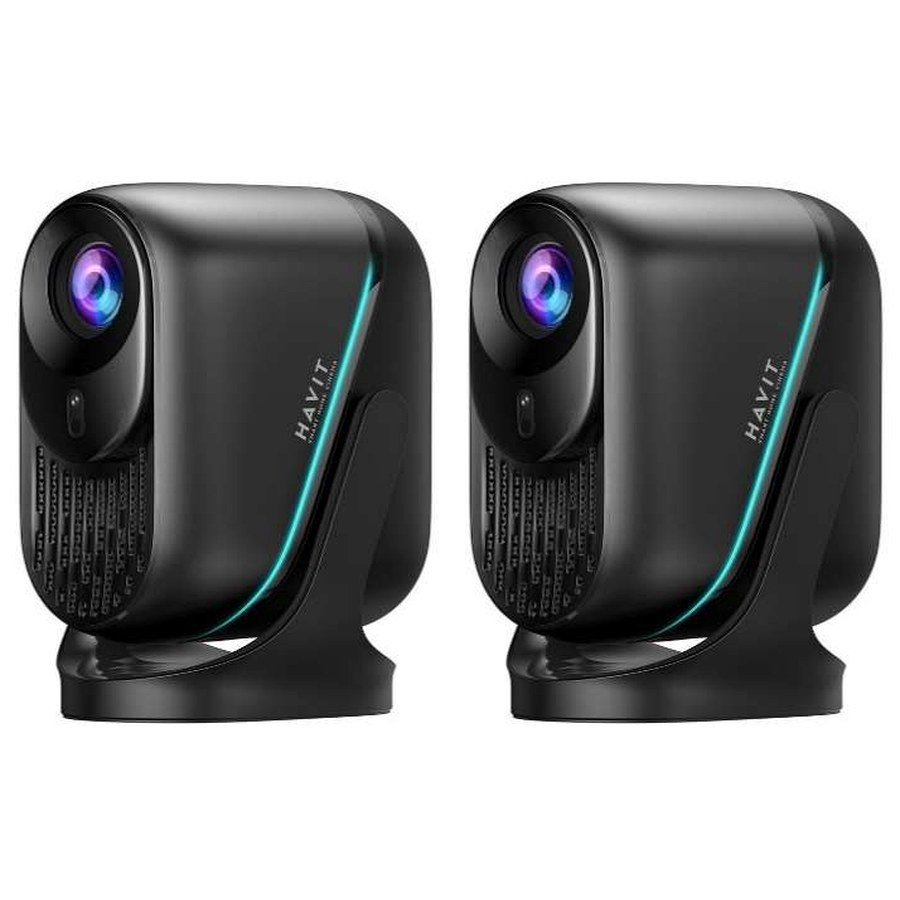
A smart HAVIT projector may power on and play video through HDMI but fail to connect to home Wi-Fi or stop streaming from its built-in apps. That is a different issue from a projector that shows “HDMI No Signal.” The HAVIT November 2026 distributor catalogue describes PJ220 Pro with Android 14, TV PJ300 Plus with Android 11/Google-licensed TV wording, and PJ600Plus with Android 11/Google TV wording. It does not provide the same Wi-Fi band or casting certification for every model, so the exact supported network and features must be confirmed from the physical unit’s manual. This guide focuses on safe router, app and network checks.
1. Confirm which projector and software you actually own
Check the model label and built-in settings screen. PJ220 Pro, TV PJ300 Plus and PJ600Plus have different processor, storage and input descriptions. The supplier’s Android/Google TV labels do not prove every regional firmware runs the same app store, has identical update support or supports the same wireless screen-casting protocols. Do not install firmware intended for a different model simply because the user interfaces look similar.
2. Check your router and other devices
Test whether a phone or computer can join the intended Wi-Fi and access a trusted website. If the internet is down across all devices, start with the router or service provider rather than resetting the projector. If only the projector fails, compare how far it is from the router and whether walls or dense cabinets block the signal. The distributor catalogue doesn’t specify an identical 2.4GHz/5GHz Wi-Fi list across these three models; check the exact supported band and security protocol before changing the router settings.
3. Verify the network name and password
Open the projector’s legitimate network settings and select a supported wireless network. Re-enter the password carefully, including capital letters and symbols. A recent router replacement, password update or SSID change can leave a projector trying to join an old network. Do not permanently disable WPA encryption, open unnecessary inbound ports or use a public unsecured network simply to obtain a connection. If the projector cannot see your network, confirm band support and proximity before assuming hardware failure.
4. Separate Wi-Fi connection from actual internet access
A projector may display “connected” to Wi-Fi yet still report no internet if the router’s external connection, DNS or captive-login process fails. Check whether other devices on the same network can access the internet. Some hotel and campus networks require a browser login or device registration that certain smart projectors may not handle. Use supported network registration steps rather than bypassing access controls. An Ethernet input is documented on PJ600Plus, but not universally on all three; only use a wired LAN option if the exact model provides it.
5. Streaming-app issues are not always a Wi-Fi fault
If the projector’s home screen or app store loads but one video service fails, check the app’s account status, supported operating-system version and legitimate updates. Protected video playback may depend on device certification and DRM. The supplier source gives general Google TV/system descriptions but does not prove Netflix, Disney+ or every service works at a particular resolution on all three models. Do not install unauthorized APKs or content-protection bypass tools to force streaming compatibility.
6. Screen casting and mirroring need separate compatibility checks
Wireless casting is not identical to ordinary network access. An Android phone’s cast method, an iPhone’s AirPlay support, Miracast and a streaming application’s dedicated casting feature are different technologies. The projector and phone must support the same intended method, often with both devices on a suitable local network. The November price list does not explicitly certify every casting protocol for these models; verify the actual menu and device specification before buying solely for iPhone or laptop mirroring.
7. Keep time, updates and account permissions sensible
Some internet services need a correct device time for encrypted connections. Check the system time and timezone before troubleshooting app sign-ins. Apply only manufacturer-supported updates and avoid interrupting them with an unsafe power arrangement. If a projector was previously used by someone else, follow legitimate account removal/reset instructions and make sure personal streaming accounts are signed out. A factory reset should be a later step after documenting installed apps and settings; it may erase data.
8. When to switch to a wired source
If the projector’s network features cannot be made stable, HDMI from a properly supported laptop, TV stick or media box may be an alternative input, subject to copyright/DRM and resolution compatibility. The supplier lists native 1920×1080 on PJ220 Pro, TV PJ300 Plus and PJ600Plus, with some 4K input-support language. Input support is not native 4K optical output. Our HDMI troubleshooting guide explains the separate cable and display-signal pathway.
Frequently asked questions
Does every HAVIT smart projector support 5GHz Wi-Fi?
The supplier summary does not give a uniform Wi-Fi band listing. Check the exact model manual and network settings.
Does Android on a projector guarantee Netflix at 4K?
No. App/device certification, DRM, licensing and native display resolution matter independently.
Will any iPhone mirror to every HAVIT smart projector?
No universal AirPlay support is documented. Confirm the actual supported casting method.
Compare the three HAVIT projector models, the focus and ventilation guide and the HAVIT Kenya hub. Infinite Tech is at Rehema House, Standard Street, First Floor Shop 2, Nairobi CBD. Phone 0720 450 148.
Source: HAVIT November 2026 supplier catalogue, projector section, for operating-system and connection descriptions. Wi-Fi frequencies and casting compatibility not specified consistently in this source are intentionally left unverified.
