
HAVIT Gaming Mouse Pointer Lagging? DPI, Wireless and Windows Fixes

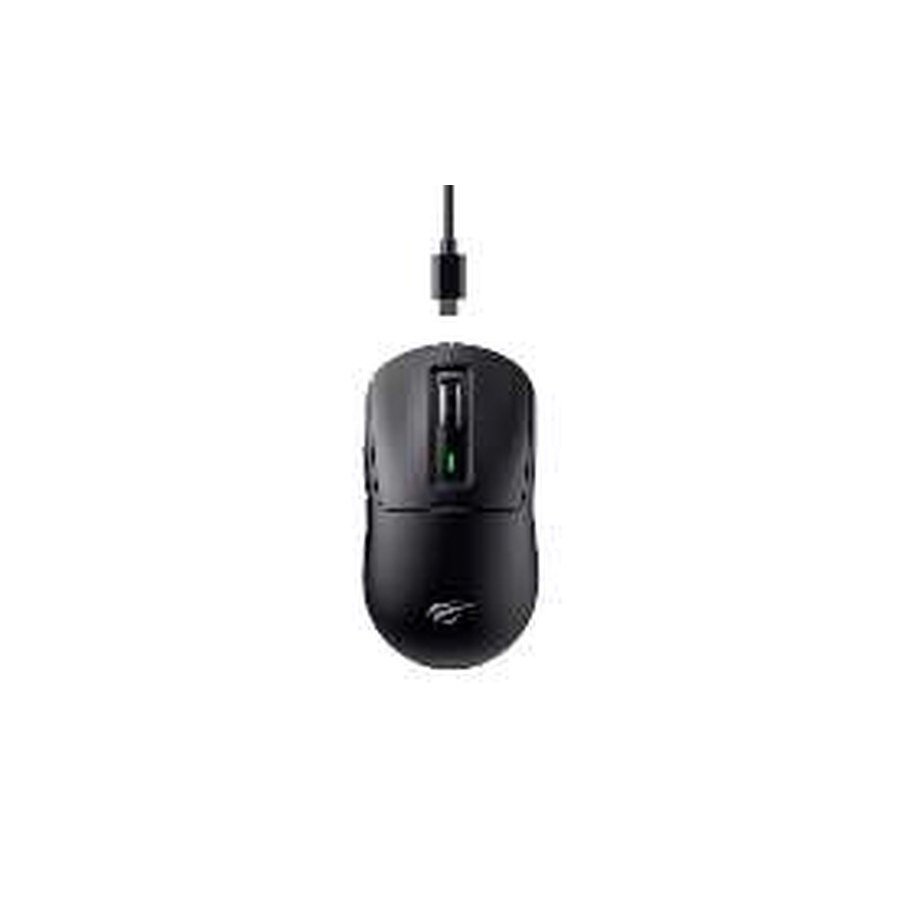
When a HAVIT gaming mouse pointer lags, stutters or jumps, changing the DPI to its highest number is rarely a reliable fix. The source could be a dirty optical sensor, unsuitable desk surface, weak wireless link, high system load or a game setting. HAVIT MS1029 and MS1038 are wired RGB gaming mice, while MS969SE and MS966WB advertise both wired and wireless modes. Their November 2026 catalogue DPI and button figures are not independent tracking-quality tests. This guide diagnoses the common failure points without recommending unsafe driver downloads or hardware modification.
1. Is the problem everywhere or only in one game?
Move the mouse on the ordinary Windows desktop, inside a file browser and in the specific game. If movement is smooth outside the game, check game frame rate, sensitivity and controller-input settings before blaming the mouse sensor. A PC that renders frames poorly can make aiming look delayed even when the mouse reports movement correctly. If the cursor skips everywhere, inspect the surface, USB receiver, sensor and connection instead.
2. Clean the mouse sensor and check the surface
Switch the mouse off or unplug it as appropriate. Inspect the optical opening for lint or hair and clean only with the dry, soft method the manufacturer approves. Avoid scraping the lens or pouring fluid into the housing. Test on a plain suitable mouse pad rather than reflective glass, glossy laminate or highly patterned surfaces. HAVIT sells small HV-MP837/838/839 pads and a larger HV-MP861 desk mat; the supplier gives their dimensions, but no independent sensor compatibility or glide-friction ranking.
3. Adjust DPI to a usable setting
MS1029 lists DPI presets up to 7,200, while MS1038 lists up to 8,000. MS969SE and MS966WB advertise 10,000 DPI. A high DPI makes the cursor travel further for a given movement; it doesn’t cure radio lag or tracking errors. Start with a comfortable middle setting, ensure operating-system pointer acceleration is understood and adjust the game’s own sensitivity separately. Some games apply raw mouse input, while others do not.
4. Wired USB mice: check cable and port
For wired models, connect to a functional computer USB data port and check for cable damage near the plug or strain relief. A frayed cable can cause brief disconnections when moved. Test another suitable port and remove a problematic hub for diagnosis. Do not insert a gaming mouse into a charging-only adapter expecting input data. If the optical light works but the computer sees no HID mouse, check the OS device list and try a second trusted computer before installing any software.
5. Wireless mice: use the correct receiver or Bluetooth mode
MS969SE and MS966WB advertise multiple wireless modes. A proprietary 2.4GHz receiver and ordinary Bluetooth connection are not automatically interchangeable. Ensure the right connection mode is selected, check the mouse battery and avoid placing the radio receiver behind a metal PC case or dense USB cable bundle. If a Bluetooth connection suffers repeated delays, test the correct manufacturer’s 2.4GHz option only if available and supported. Never use an unknown USB receiver as a replacement merely because the plug fits.
6. Check CPU and game performance
A lagging desktop can delay screen updates even while the mouse itself reports normally. Observe whether the problem coincides with heavy CPU usage, overheating, video recording or a high graphics workload. Restarting a busy application or lowering game graphics temporarily can help isolate the cause. Don’t confuse low game frames per second with the mouse’s USB polling frequency; the supplier catalogue does not publish a verified polling-rate test for these exact models.
7. Software and programmable buttons
Some gaming mice support extra buttons, RGB or programmable controls. Use only model-specific official software where documented, and confirm it is compatible with your operating system. A malicious third-party macro or driver package can damage security and won’t reliably improve tracking. If one side button does not work, check whether the game actually maps that input instead of treating the entire mouse as defective.
8. When to replace or service
If the cursor freezes on multiple compatible computers, different known-good surfaces and appropriate direct connections, hardware or cable faults become more likely. A mouse exposed to spilled liquid, electrical overheating or physical damage should not be repaired by unsafe home rewiring. Note the model number and whether the symptom occurs on wired, Bluetooth or receiver mode.
Frequently asked questions
Does 10,000 DPI mean a mouse has low lag?
No. DPI is not the same as reporting latency, wireless stability or sensor accuracy.
Will an expensive mouse pad fix every tracking issue?
No. It may help on an unsuitable surface, but software and connection problems can remain.
Why does the cursor move normally on Windows but stutter in games?
Rendering frame rate, game input processing and graphics workload are potential causes.
Compare HAVIT wired mice, multi-mode mice and HAVIT Kenya hub. Infinite Tech, Rehema House, Standard Street, First Floor Shop 2, Nairobi CBD; 0720 450 148.
Source: HAVIT November 2026 distributor catalogue, mice and mousepad pages, for model specifications. Diagnostics are general PC input troubleshooting.
