
HAVIT Projector HDMI No Signal: Safe Troubleshooting for Kenya

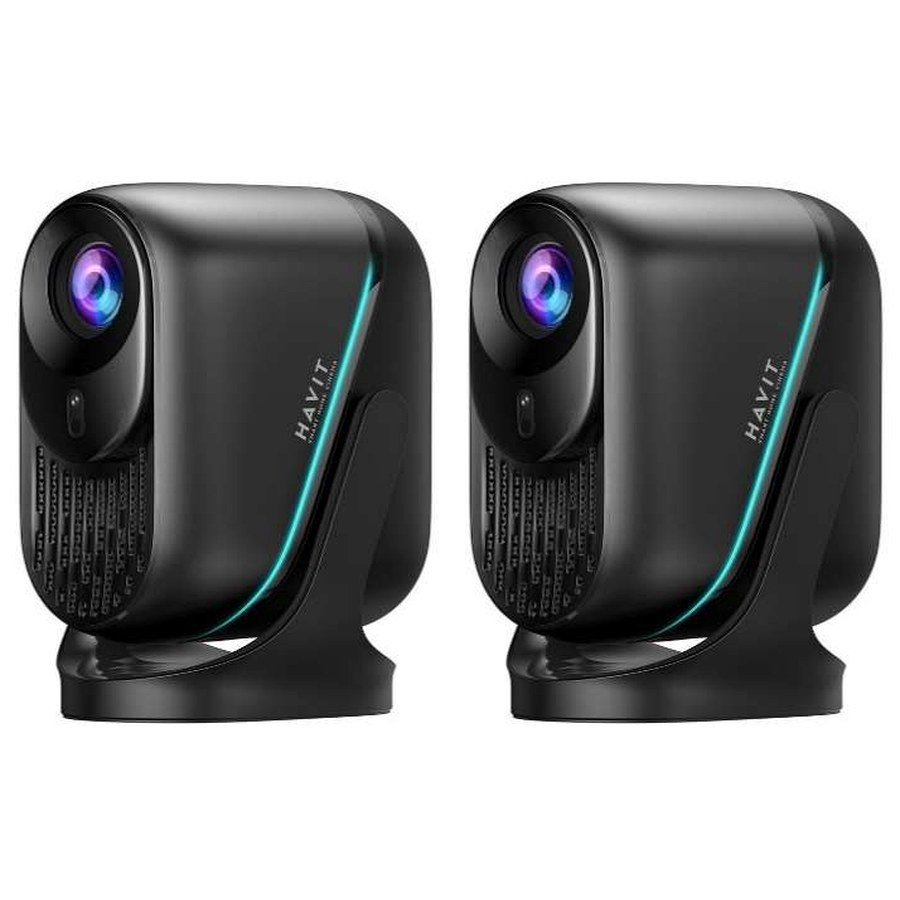
Your HAVIT projector powers on, but an HDMI-connected laptop, TV box or console shows “No Signal” or a black screen. This does not always mean the projector is faulty. Common causes include selecting the wrong input, a loose HDMI cable, a laptop that has not activated its external display output, or a signal mode the projector will not accept. The HAVIT November 2026 supplier sheet lists HDMI connectivity for PJ220 Pro, TV PJ300 Plus and PJ600Plus, all with a 1920 × 1080 native image resolution. This troubleshooting guide covers reversible, low-risk checks; the precise on-screen menu labels differ by firmware.
Start with the simplest signal test
- Power on the projector normally and wait for its own menu or home screen to appear. If no projector menu appears, the issue may involve power, lens cover, lighting or the projector itself rather than HDMI input.
- Select the physical HDMI input from the projector’s input/source menu, not merely an HDMI-looking application icon. If it offers HDMI 1 and HDMI 2, choose the socket you actually used.
- Check both ends of the HDMI cable without forcing connectors. If available, test a second known-good cable with the same source and projector.
- Restart the source device after the HDMI connection is established, then allow the source to complete startup.
- Test another HDMI source such as a laptop or media box when possible. This helps distinguish the projector input path from the original device.
For a Windows laptop: enable external display output
On a Windows PC, use the system display controls to select Duplicate or Extend for the second screen. Many computers also have a hardware display shortcut. In Windows Display Settings, ask the PC to detect a second display and inspect its supported resolution and refresh choices. If the projector is detected but stays blank, try a conservative mode such as 1920 × 1080 at 60Hz, provided the exact projector HDMI input supports it. Do not assume the projector can accept every 4K or 120Hz signal just because the supplier uses “supports 4K” wording.
For a MacBook or USB-C laptop: check the adapter
A USB-C socket does not automatically output video. To connect an HDMI projector through USB-C, the laptop must support the appropriate display-output mode and the adapter must expose HDMI video functionality. A small data-only USB-C hub is insufficient. For example, the HAVIT HB41 hub is described as a USB-A data accessory, with no HDMI output documented in its catalogue row. Confirm your laptop model’s video capabilities and use a known video-capable adapter instead.
Why “supports 4K” can still show an unsupported resolution
HAVIT PJ220 Pro, TV PJ300 Plus and PJ600Plus all have 1920 × 1080 native resolution in the provided supplier catalogue. A “4K supported” phrase generally refers to input decoding or acceptance under certain conditions; it does not mean the projected optical image has 4K physical display pixels. The catalogue summary does not identify every supported HDMI timing, refresh rate or colour format. When troubleshooting, step down an excessively high signal mode to a supported one instead of assuming 4K HDR at any frame rate will work.
If a TV box works but Netflix or a movie stays black
If the connected device’s menu displays normally but protected streaming video produces a black picture, the problem may involve digital-content protection (HDCP), codec compatibility, app output settings or a particular HDMI handshake. The supplier sheet does not provide specific HDCP-version information for these models, so avoid promising Netflix, Disney+ or another service will play at a certain quality through any external box. Use the content provider’s legitimate troubleshooting guidance and approved hardware. Do not install unauthorized tools to bypass content protection.
If the projector has sound but no picture
Start by checking that the correct input is selected and that the projector’s own menu remains visible. If the HDMI source repeatedly connects/disconnects, test a shorter suitable cable and inspect the cable and plug for damage. A laptop with external-display output set to unsupported timing can transmit some connection information without a useful visible image. Test a conservative supported mode. Avoid physically flexing HDMI sockets or opening the projector enclosure.
If the projector has picture but no sound
Confirm the laptop or media box has selected HDMI as the audio output, when supported by the source and projector. Some source devices continue sending audio to Bluetooth headphones or an internal speaker. The supplier sheet lists audio features differently across these models, so do not assume the same volume menu, ARC/eARC function or external-audio routing is present on all three. Check the exact model manual before trying adapters or audio outputs.
Safety and when to request service
Turn equipment off before connecting or disconnecting damaged cables. Maintain clear ventilation and never open a projector with power components or hot optical parts. If the internal projector menu does not display, the HDMI jack appears mechanically damaged, or a known-good laptop/cable fails on all documented inputs, record the model number, input used and observed message. Contact Infinite Tech or an appropriate service technician rather than repeatedly applying firmware files from unverified sources.
Frequently asked questions
Why does my projector show “No Signal” when the laptop is on?
The laptop may be using only its own display, may output an unsupported signal or may be connected through a USB-C adapter without video capability.
Does my HAVIT projector need an HDMI 2.1 cable?
The supplied catalogue does not document HDMI-port protocol versions for these exact models. A known-good cable appropriate for a supported video mode is the starting point; do not buy high-cost cable upgrades without diagnosing the signal.
Can the projector display real 4K pixels?
These three models are listed with native 1920 × 1080 resolution. A 4K input-support claim is different from native 4K projection.
Check the exact HAVIT projector
View PJ220 Pro, TV PJ300 Plus and PJ600Plus, or consult the three-model projector comparison. The HAVIT Kenya hub lists the full range. Infinite Tech is at Rehema House, Standard Street, First Floor Shop 2, Nairobi CBD. Call 0720 450 148 with the exact projector model, connected device and the input-screen message.
Source: HAVIT November 2026 supplier catalogue, page 10, for HDMI and native-resolution model facts. The diagnostic sequence is general display-connection guidance and should be adapted to the exact model manual.

One thought on “HAVIT Projector HDMI No Signal: Safe Troubleshooting for Kenya”
Comments are closed.