
HAVIT Projector Blurry or Overheating? Focus, Image and Ventilation Checks

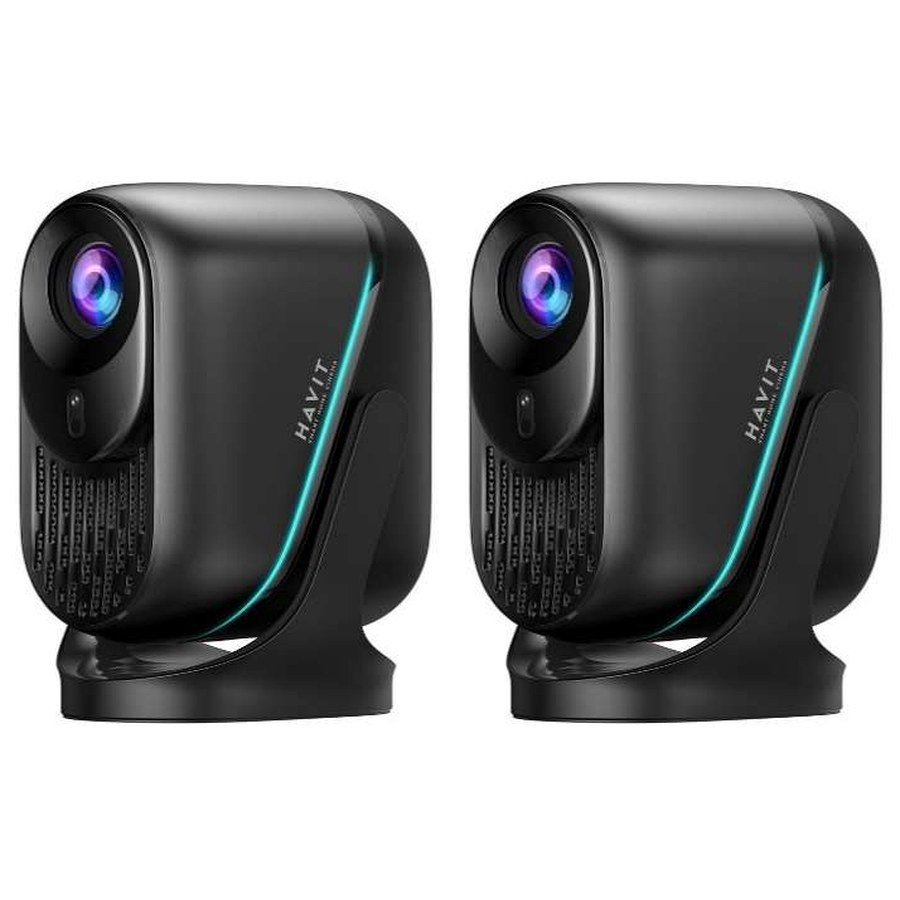
A HAVIT projector may power on and display HDMI video but still look blurry, crooked or overly hot. Before assuming an optical fault, distinguish focus, placement, signal quality, image geometry and ventilation. The November 2026 HAVIT supplier sheet lists PJ220 Pro, TV PJ300 Plus and PJ600Plus with native 1920×1080 image resolution, but it does not provide identical throw-distance, focus or permitted-temperature charts for every model. This guide covers safe setup checks and explains when the right action is to switch the device off and seek service.
1. Start with the projector’s built-in menu
Display the projector’s own settings or home screen. If that menu is sharp but a connected movie looks soft, the issue may be input resolution, compression or the streaming source. If the projector’s own characters are blurry, check mechanical/electronic focus and positioning according to the model manual. A simple menu test helps distinguish the projected optical image from an HDMI, Wi-Fi or streaming problem. For HDMI input that shows “No Signal,” use our separate HAVIT HDMI input troubleshooting guide.
2. Confirm distance, placement and optical focus
Move the projector to a stable surface at a distance recommended for the exact unit. Projector lenses have a focus adjustment range; a screen outside that range may never appear properly sharp. Follow the manufacturer’s manual to use the focus ring, electronic focus or autofocus feature if the unit actually provides it. Avoid turning an optical ring beyond its stops or touching a hot lens housing. Place the projector approximately square to the wall or screen rather than relying on extreme digital correction.
3. Keystone correction is not a substitute for proper alignment
Keystone correction can help straighten a trapezoidal picture when the projector is tilted or off-axis, but substantial digital correction may reduce apparent detail. Start by physically centring and levelling the projector, then apply the smallest correction needed. Do not promise that every HAVIT model has the same automatic keystone range: the source lists different feature descriptions. A curved or textured wall can also distort edges. A clean flat screen makes it easier to assess sharpness before blaming the lens.
4. Check native resolution versus accepted video input
The supplier lists 1920×1080 native display resolution for PJ220 Pro, TV PJ300 Plus and PJ600Plus. Some rows advertise support for 4K input, which does not make the optical output 4K. If a 4K movie appears soft, consider the source bitrate, scale conversion, focus and screen size. When diagnosing, try a known-good 1080p signal from a trusted source. The image can look less detailed if stretched onto a very large wall or viewed too closely, even with a functioning projector.
5. When a projector seems unusually hot
Projectors contain heat-producing illumination and power components, so warm exhaust air during normal use is expected. However, repeated thermal warnings, unexplained shutdowns, smoke, a burning smell or unusually loud fan behavior are reasons to stop and investigate. Power down according to the manufacturer’s instructions and allow the fan to finish its safe cooling cycle if applicable. Never block ventilation openings, cover the projector with fabric or place it on a soft bed or couch where inlets can be restricted.
6. Ventilation, dust and installation
Leave the manufacturer-recommended clearance around air inlets and outlets. Keep the unit away from curtains, dense shelves, heat sources and direct sun. Some projector designs contain user-cleanable dust filters; others do not. The supplier price list does not establish a universal serviceable filter for these HAVIT units, so do not open the housing to clean the optics. Wipe exterior surfaces only according to the model manual and have internal cleaning performed by appropriate service personnel. Avoid blowing compressed air into unspecified openings.
7. Picture but no audio
If the image looks fine but sound is absent, confirm whether the source is outputting audio through HDMI or through another Bluetooth device. A Windows laptop may have its own audio output selected despite the external display being connected. A phone casting through an adapter can have separate audio-routing limitations. Verify the exact projector’s speakers and external audio ports from its own instructions. Do not assume HDMI ARC/eARC support merely because an HDMI socket exists.
8. When to stop troubleshooting
If the projected menu remains out of focus after proper positioning, the screen shows strange colour bands under several known-good sources, or thermal shutdowns recur despite adequate airflow, avoid firmware from unofficial websites and stop using it pending inspection. Optical alignment, internal fans and electrical supplies may require qualified service. Record the HAVIT model, source used, room conditions and any error code for the seller.
Frequently asked questions
Will a more expensive HDMI cable fix blurry focus?
No. If the projector’s own on-screen menu is blurry, check optical focus and placement first.
Is 4K support the same as native 4K?
No. The three cited HAVIT models are listed as native 1080p.
Can I use a projector on a blanket or bed?
Soft surfaces may block ventilation. Use a stable arrangement with manufacturer-specified airflow clearance.
Compare the PJ220 Pro, TV PJ300 Plus and PJ600Plus, along with the HAVIT projectors guide and HAVIT Kenya hub. Infinite Tech: Rehema House, Standard Street, First Floor Shop 2, Nairobi CBD; 0720 450 148.
Source for native-resolution facts: HAVIT November 2026 distributor catalogue, projectors section. These are general optical, signal and ventilation checks, not exact model menu instructions.
