
HAVIT Wireless Mouse or Keyboard Not Connecting? Receiver and Bluetooth Fixes

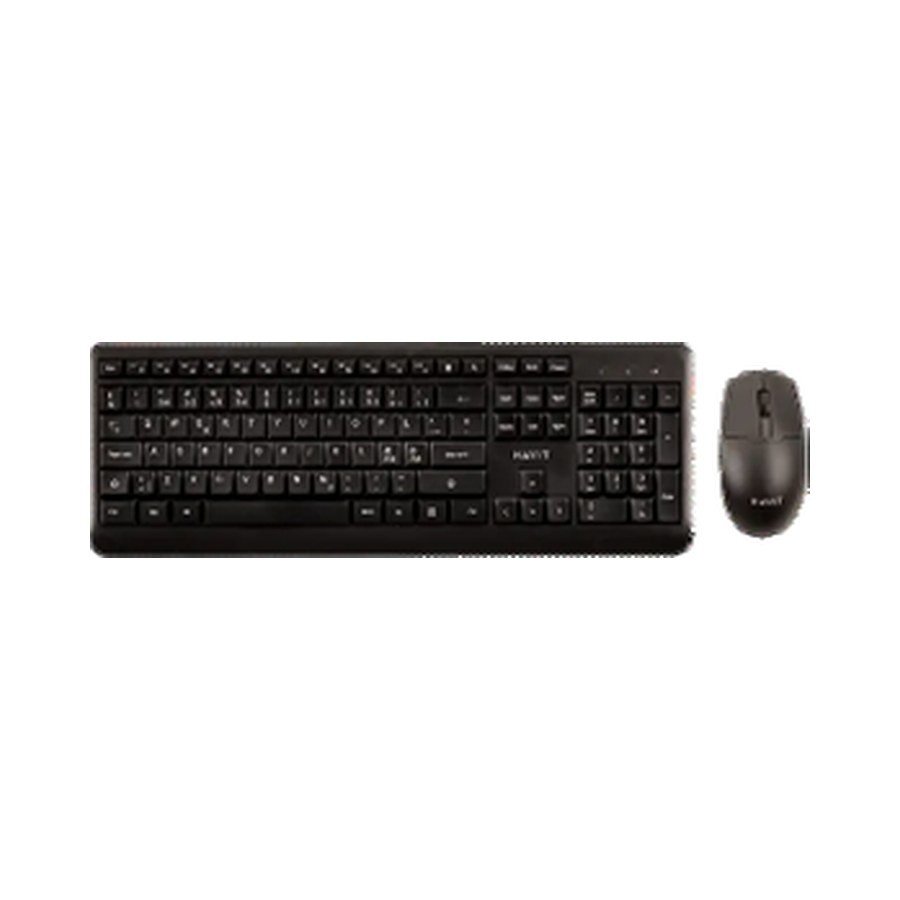
When a HAVIT wireless mouse or keyboard stops responding, there are two completely different connections to diagnose: 2.4GHz wireless via a matching USB receiver and Bluetooth pairing directly with the computer. The HAVIT KB269GCM, KB254GCM and KB242GCM supplier records describe 2.4GHz sets, while KB261WB, KB271WB and KB251WB describe both Bluetooth and 2.4GHz modes. A mouse from a dual-mode set can be working over one mode while its keyboard remains on the other. This guide covers safe, reversible checks before buying a replacement.
1. Determine whether your HAVIT device needs a USB receiver
Many “wireless” keyboards use a small USB-A radio receiver (sometimes called a dongle). This is not the same as ordinary Bluetooth. If the model is 2.4GHz-only, Windows Bluetooth pairing will not find it without the special receiver. The receiver may be stored in the mouse body or included with the keyboard/mouse package, depending on model. Check the exact instruction sheet. Do not assume an arbitrary receiver from another keyboard will pair even if it fits the port; the device pairing can be proprietary.
2. Check battery power and switches
Some HAVIT office bundles use disposable AA or AAA batteries. For instance, KB254GCM is listed with two AAA cells for the keyboard and one AA for the mouse. Install the correct type and polarity and check any on/off switch. Remove depleted cells safely and do not mix old and new batteries or damaged cells. If a device has a rechargeable battery, follow its specified USB input instead. A mouse optical light is not a reliable indicator of charge in every sensor design.
3. Test the receiver in a known-good port
Connect the receiver to a functional USB data port on the computer, preferably directly for testing. A charging-only USB adapter won’t establish a computer input connection. If you use a USB-C-only laptop, test a verified USB-A-to-C data adapter or compatible hub. Try another port, but do not insert the receiver with force. Check whether the operating system detects a human-interface device (HID). If the receiver is lost or physically damaged, the vendor may need to confirm an exact replacement; don’t buy a generic Bluetooth dongle expecting it to substitute for a proprietary 2.4GHz receiver.
4. Switch the correct mode on a dual-mode model
KB261WB, KB271WB and KB251WB advertise multi-mode operation, including Bluetooth and a USB-receiver mode. The actual key combinations, channel indicators and pairing sequence vary by model; no common pairing-key instruction is documented in the supplier summary. Follow the exact manual to choose Bluetooth, then search from the computer’s Bluetooth settings. If the device appears under several saved names, remove only your old matching pairing and reconnect. Avoid factory resets until you’ve identified the currently selected radio mode.
5. If the keyboard works but the mouse doesn’t
One working half of a bundle narrows the fault. Check the mouse’s battery, power switch, sensor surface and device-mode indicator separately. Try a plain nonreflective mouse pad, remove dust from the optical sensor using permitted cleaning methods, and check whether the cursor is frozen only in one app. If the keyboard remains functional through the receiver, the USB port is less likely to be the primary cause, though the mouse may have its own pairing or hardware fault.
6. If the mouse works but the keyboard doesn’t
Check battery polarity and the keyboard’s selected mode. Test ordinary characters in a text editor rather than only media or function keys. A special Fn lock or operating-system keyboard layout can make particular keys behave unexpectedly while the main connection still works. If the whole keyboard is silent, test it on another supported computer or in its other documented mode. Do not pry keycaps off a new keyboard to diagnose a radio connection.
7. Check wireless interference and power saving
USB 3.0 equipment, crowded 2.4GHz networks and poorly placed dongles can affect some wireless peripherals. Move the receiver closer and away from metal PC cases or dense cable clusters. For Bluetooth devices, check the operating system’s battery or device sleep settings. If disconnections occur only after the PC wakes from sleep, reconnect normally and check legitimate operating-system and manufacturer updates. Never disable all system security to install an unverified wireless driver.
8. When to escalate
If a correct, fully powered device fails on several compatible machines with its own matching receiver, hardware or receiver pairing may be at fault. Record the exact HAVIT model, USB receiver identification, battery type, computer model and which half of the bundle responds. Contact Infinite Tech for precise replacement or servicing advice; a generic “10-metre wireless range” label cannot identify this fault.
Frequently asked questions
Can I use any USB dongle with my HAVIT 2.4GHz mouse?
Not necessarily. Many receivers are uniquely paired or use a specific protocol.
Why won’t a 2.4GHz-only keyboard appear in Bluetooth?
Its 2.4GHz receiver connection is not ordinary Bluetooth discovery.
Will replacing AA batteries always fix a silent mouse?
No. Receiver, mode, sensor, port and hardware problems are also possible.
Read our six-HAVIT-combo comparison, the keyboard/mouse buying guide and the HAVIT Kenya hub. Infinite Tech is at Rehema House, Standard Street, First Floor Shop 2, Nairobi CBD. Call 0720 450 148 with the model code and receiver details.
Source for HAVIT modes and cell requirements: November 2026 supplier catalogue, keyboard/mouse section. Connection procedures are general because each model’s factory pairing sequence varies.
