
HAVIT Gamepad Not Recognized by Windows or PC Games? G180BT, G158BT Pro

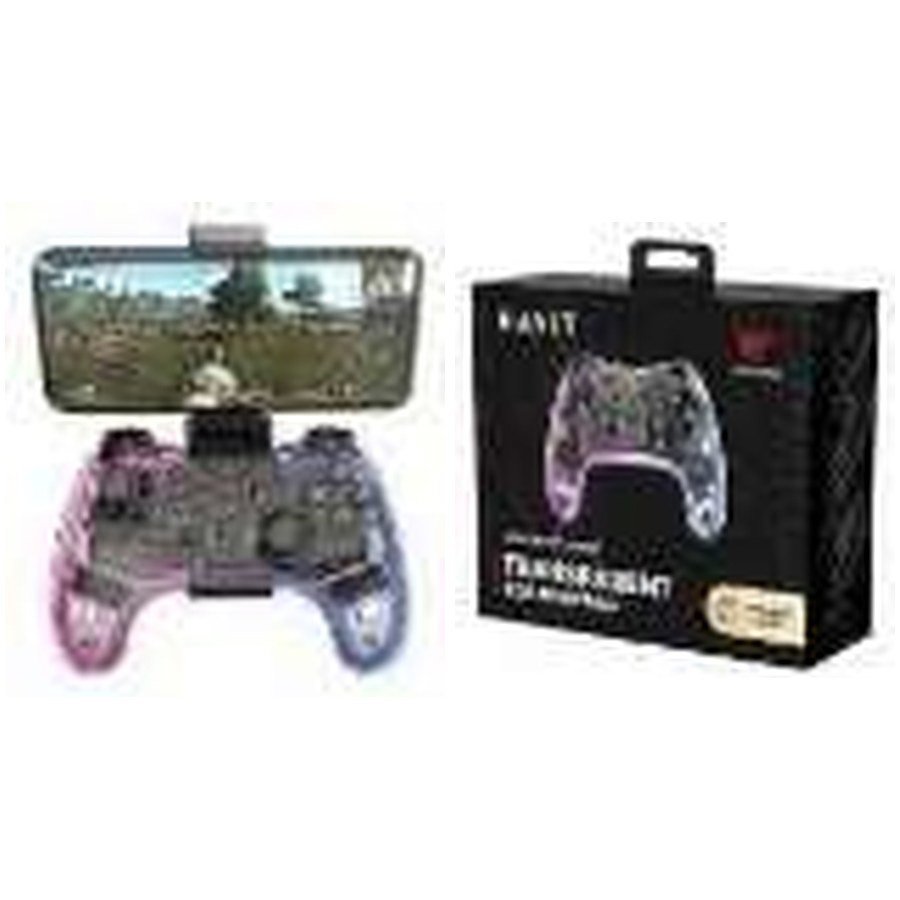
A Bluetooth gamepad may pair with a computer yet not respond inside a game. For HAVIT G180BT and G158BT Pro, the key question is which input mode the controller exposes and whether Windows and the particular game accept that mode. The November 2026 HAVIT distributor catalogue describes G180BT as a Bluetooth controller with turbo and RGB features, while G158BT Pro has Bluetooth 4.0+EDR and a retractable phone holder. It does not establish that either uses native Xbox XInput, PlayStation or Nintendo protocols on every platform. This guide explains safe compatibility checks without recommending untrusted drivers.
1. Confirm the exact controller model
The HAVIT G180BT listing describes Bluetooth operation, an 800mAh battery and turbo functions. The G158BT Pro specifies an 800mAh battery and a phone clamp for approximately 4–6-inch devices. Neither physical resemblance to an Xbox controller nor the marketing term “gamepad” proves a game supports it. Read the model and current manual to determine the connection modes available; don’t apply generic internet button combinations blindly.
2. Does Windows detect it as a controller?
Pair it using the manufacturer’s supported Bluetooth process and the Windows Bluetooth device settings. Once the device is connected, check whether it appears as a game controller or HID input device in Windows’ appropriate settings or a trusted controller test interface. If Windows detects a Bluetooth device but no game inputs respond, the connection mode or HID profile may be wrong. The catalogue does not document an exact XInput/DirectInput switch sequence, so only use verified model instructions. A pairing success message is not the same as proof that all buttons are recognized.
3. Check the game itself
Some PC and mobile games do not support external controllers at all; others only support particular input standards. In the game’s settings, enable controller input if that function exists. Test a known controller-compatible game or legitimate test utility to isolate whether the issue belongs to the controller or to the game. Steam may have its own controller configuration and mapping features, but support depends on the controller and game. Don’t install counterfeit console drivers or unknown remapping software that requests administrator access without justification.
4. Re-pair after changing from phone to PC
A controller that last connected to an Android phone may reconnect to that phone automatically instead of staying paired to a computer. Disconnect it from other trusted devices, follow the official pairing-mode instruction and add the correct device entry to Windows. If Windows retains a stale earlier pairing, remove only that matching entry and reconnect. Never factory-reset or flash new firmware from an unfamiliar site just to make one game’s controls respond.
5. Check power, USB and wireless stability
A discharged or unstable battery can interrupt pairing and input. Charge using the manufacturer-supported connection and a suitable supply. For G180BT the catalogue mentions a Type-C interface, but it doesn’t establish that plugging in the charging cable automatically creates a wired game-controller data connection. Test only a documented wired mode if the manual supports it. Bluetooth interference, walls and a crowded 2.4GHz radio environment can cause delays or lost inputs. Move near the computer and avoid unnecessary USB radio clutter during diagnosis.
6. Why one button or analog stick may appear wrong
Button layout may differ between controller standards. Games can map confirm/cancel, menu and triggers differently. If only a few controls are wrong, check the OS or game’s button-mapping interface rather than assuming physical damage. The G180BT advertises turbo and auto functions; these may cause unexpected repeated inputs where enabled. Confirm how to return to normal mode through the exact controller’s instructions. Do not assume the turbo function is allowed in a game’s competitive rules.
7. Phone mount and mobile-game compatibility
The G158BT Pro’s retractable holder is listed for 4–6-inch devices, but screen diagonal is not a precise measure of external body width, especially with a protective case. Check clamp fit before placing a valuable phone overhead. A mobile game must also support controller input on that OS. Bluetooth pairing alone does not confer compatibility with every popular Android or iOS title.
8. When to request support
Record the exact HAVIT model, Windows version, Bluetooth mode, game name, whether controls work in a trusted test and any observed LED or error. If all buttons fail on several confirmed compatible systems, hardware or firmware support may be needed. Do not dismantle the lithium battery or force the analog sticks to make them respond.
Frequently asked questions
Will either HAVIT controller work with every Xbox or PlayStation?
Not established by the November catalogue. Confirm the specific console and official support.
Why does my controller pair but games ignore it?
The game may not support that input mode or may need controller settings enabled.
Can I connect a USB charging cable and use it as a wired controller?
Only if the exact model supports USB data/input mode; a charging connector alone does not prove that.
Read the G180BT/G158BT Pro comparison, the HAVIT controller guide and the HAVIT Kenya hub. Infinite Tech is at Rehema House, Standard Street, First Floor Shop 2, Nairobi CBD. Phone 0720 450 148.
Supplier basis: HAVIT November 2026 gamepad catalogue entries. The Windows and game checks are general compatibility guidance, not proof of a specific driver or console certification.
