
HAVIT IPC20 or IPC30 Camera Offline? Wi-Fi and Notification Fixes

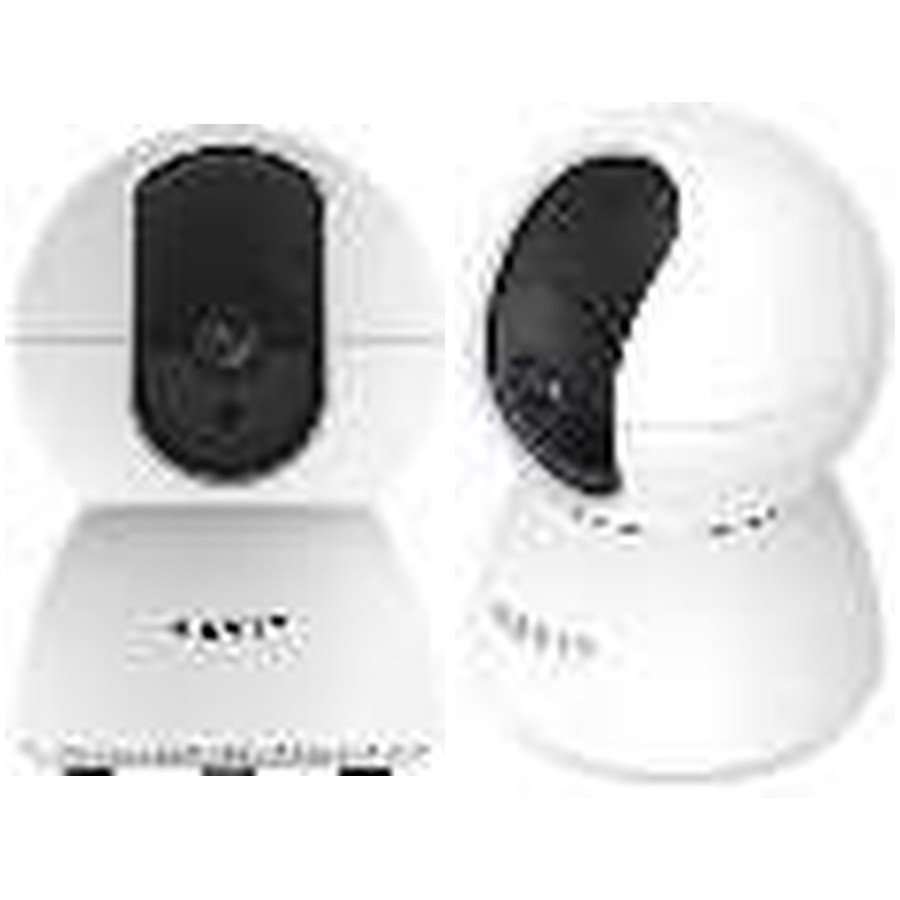
A HAVIT indoor camera can be installed successfully and then show “offline,” “device disconnected” or no push notifications in its app. Those symptoms can have different causes: no power, weak 2.4GHz Wi-Fi, a changed router password, phone notification permissions or a cloud/app service problem. The HAVIT IPC20 and IPC30 are described in the November 2026 supplier catalogue as Tuya-app, 2.4GHz Wi-Fi cameras with motion and sound detection, two-way audio and TF/microSD support up to 128GB. This guide is designed to isolate faults without weakening router security or exposing private video feeds.
First check whether the camera has power
Look for the normal indicator described by the exact camera manual. A dark indicator could reflect a switched-off wall outlet, damaged cable, failing adapter or the camera itself. Verify the correct input label; the IPC30 supplier row states DC 5V/1.5A, while the IPC20 summary does not provide a matching specification. Do not assume both models use interchangeable adapters. Avoid exposed wiring, overloaded extension sockets or DIY repairs to a warm or damaged power supply.
1. Distinguish internet outage from a camera-only failure
Check whether other trusted devices can use the same home Wi-Fi network. If every device has lost internet, troubleshoot the router or service rather than factory resetting the camera. If the camera alone is offline, compare its signal at the installation point with a phone held nearby. Strong phone mobile-data reception does not establish strong 2.4GHz Wi-Fi reception for the camera. Thick walls, distance, crowded frequencies and poorly oriented antennas may matter. Start with a temporary safe placement nearer the router when testing.
2. Verify 2.4GHz network settings
Both IPC20 and IPC30 catalogue rows list 2.4GHz Wi-Fi, without documenting 5GHz support. A router replacement, renamed SSID or changed password may disconnect the camera permanently until it is legitimately reconfigured. Use official Tuya setup procedures for the exact device. Do not disable router encryption, open public port forwarding or switch to an unsafe public network merely to make pairing succeed. Some modern routers combine 2.4GHz and 5GHz names; check their documentation for a supported accessory pairing method.
3. Check the camera state before using reset
A powered camera with a local recording card may behave differently from a camera that relies on cloud connectivity. Confirm whether the issue affects live view, recording, alerts or all three. The supplier summary does not guarantee local standalone recording without an app or network account. Avoid resetting at the first offline warning: a reset could require re-pairing, alter stored preferences or affect recordings. Follow the exact official manual and understand the impact before clearing settings.
4. If live view works but alerts never arrive
Push notifications usually require several steps: camera detection enabled, correct event schedule, app notification permission, and functioning delivery from the service. Test motion under conditions that the manufacturer specifies, without attempting to simulate a dangerous security incident. Then review iPhone/Android notification settings, the Tuya app’s alert subscription options and background restrictions. Some phones suppress notifications in Do Not Disturb, Focus or battery-saving modes. A working video stream does not prove push alerts are enabled.
5. Check storage and event-recording settings separately
The supplier describes TF/microSD support up to 128GB for both cameras. If alerts arrive but recordings are missing, inspect whether the appropriate recording mode and schedule are active and whether a supported card is healthy. Storage duration varies with resolution, bitrate and continuous/event settings; the catalogue does not provide enough detail to promise a particular number of days. Back up important footage before changing storage settings. Never format a memory card with valuable files simply because a phone app temporarily says “offline.”
6. Basic privacy and security checks
Use the current trusted Tuya application and verify its publisher, not a random browser site claiming to show your camera. Use a unique strong account password and multifactor authentication where available. Update camera firmware only through legitimate manufacturer-supported channels. Restrict who can view feeds and be considerate of employees, family, visitors and neighbours. A camera’s advertised motion detection is not proof of automatic face recognition or guaranteed burglary prevention.
7. When to get help
If the camera powers on but will not connect even near a suitable 2.4GHz router, record the error message, phone platform, router model, exact camera SKU and app version. If several known-good power supplies, used only where electrically compatible, fail to energize the device, stop and request service. Do not open the camera enclosure to bypass safety features. A model advertised as indoor without an outdoor IP rating should not be left exposed to rain.
Frequently asked questions
Does the IPC30 work on a 5GHz-only network?
The supplier only specifies 2.4GHz, so 5GHz operation must not be assumed.
Why do I see video but no phone alerts?
Detection schedules, app permission, system Focus modes or service settings can suppress push notifications.
Will a factory reset recover missing video?
No such guarantee exists. Back up important footage and follow the official reset guidance before making destructive changes.
Compare IPC20 and IPC30, follow our initial setup guide, and visit the HAVIT Kenya hub. Infinite Tech: Rehema House, Standard Street, 1st Floor Shop 2, Nairobi CBD. Call 0720 450 148.
Source: HAVIT November 2026 supplier price list, camera section, for Wi-Fi band, Tuya app and recording features. Troubleshooting is general and does not claim to have tested the user’s camera or app account.
