
How to Set Up HAVIT IPC20 or IPC30 Tuya Wi-Fi Cameras in Kenya

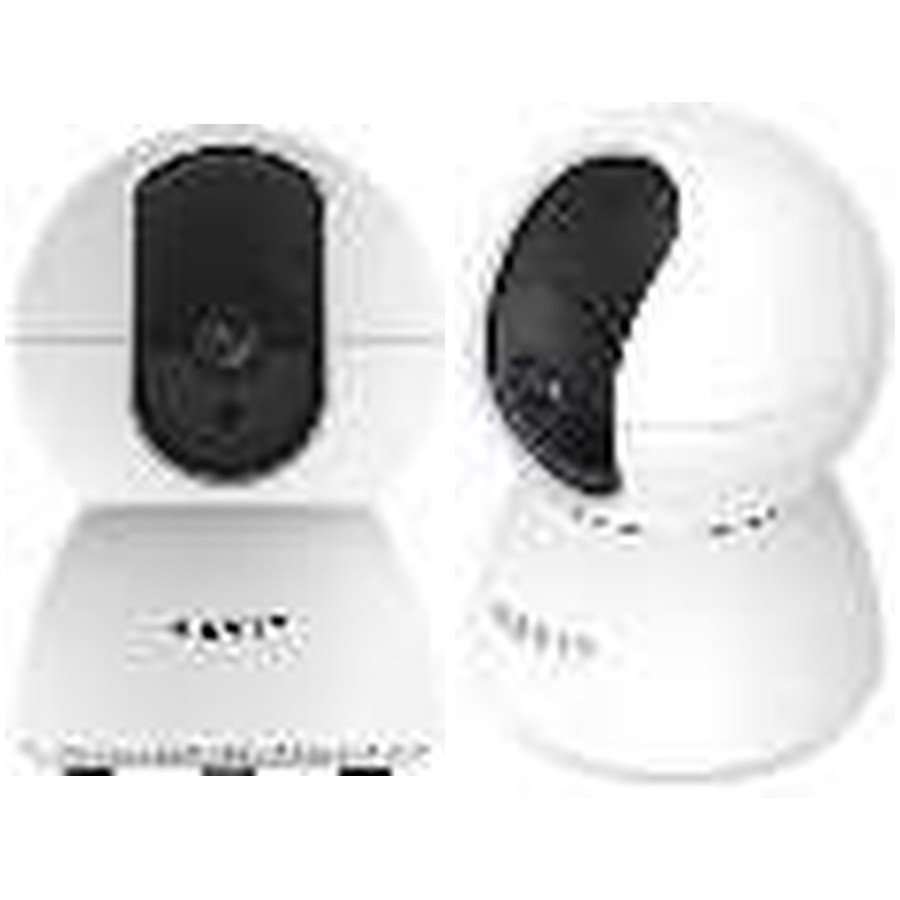
Setting up a new HAVIT Wi-Fi camera can stall when the phone uses a 5GHz network, a router isolates devices or the companion application lacks the permissions required to discover the camera. HAVIT IPC20 and IPC30 are listed with 2.4GHz Wi-Fi and the Tuya companion app in the November 2026 supplier catalogue. Both also advertise two-way speech, movement alerts and microSD storage up to 128GB. This is a practical setup and privacy checklist, not a claim that every firmware menu or subscription option is identical.
Start by identifying your exact camera
The HAVIT IPC20 is listed as a 2MP/1080p model at a current WooCommerce price of KSh 3,495; the IPC30 is described as 3MP and labelled “2K” in the supplier sheet, priced KSh 4,495 at inspection. They share several setup characteristics, but a higher nominal pixel count does not guarantee the same app menus, recording frame rate or firmware controls. Check the product label and the QR code supplied with your exact unit before pairing.
1. Choose a suitable router connection
The price list specifies 2.4GHz Wi-Fi for both cameras. It does not establish support for 5GHz-only wireless networks. If a router broadcasts the same network name on both bands, the pairing process can be sensitive to how the app discovers local accessories. Check the manufacturer’s actual router setup requirements rather than permanently weakening Wi-Fi security. A reasonably strong 2.4GHz signal at the camera’s intended location is more important than a fast mobile internet speed on the phone.
2. Install the right app and review permissions
Use the official Tuya app source specified by the device’s current documentation or QR setup sheet. Verify the publisher before logging in. Depending on the phone and Android or iOS version, pairing may request Bluetooth, local-network, location or camera permissions to scan a QR code or discover devices. Grant only what the desired function needs, and understand that cloud access could expose video or audio to a service provider. Do not reuse the same short password for your email and camera account; enable multifactor authentication when the account supports it.
3. Power on and add the camera using its manual
Place the camera near a suitable power source and confirm its adapter matches the exact model; the IPC30 row lists DC 5V/1.5A, but the IPC20 summary doesn’t document an equivalent rating. Follow the supplied instructions to put the camera in pairing mode. In the Tuya application, add the correct camera category and follow the on-screen QR or Wi-Fi process. Do not copy an internet “hold for 15 seconds” reset sequence unless the same instruction appears in the model’s official manual. If the device has previously been bound to another account, address ownership and unbinding through legitimate procedures.
4. Test live picture, microphone and notifications separately
Once paired, first check the live video, then the two-way audio function and motion or sound notifications. These are different app features. A live stream that works but does not send alerts can reflect permissions, schedules or detection settings rather than a failed camera. The supplier says both models can rotate approximately 355° horizontally and 80° vertically. This doesn’t mean they can see every direction simultaneously, automatically track a person, or recognize faces. Inspect the actual field of view and avoid relying on one camera to watch several blind corners at once.
5. Decide on local recording and storage
Both catalogue entries describe TF/microSD cards up to 128GB. Buy a card of suitable endurance and capacity, then format it only as the model manual instructs. Recording time depends on compression, resolution, frame rate, continuous versus event capture and card wear. The manufacturer summary does not promise a free cloud plan or that all video can be recorded without an account or internet. Test recording and playback before relying on the camera for business or home security evidence, and consider backup power if outages are common.
6. Place cameras with privacy and physical safety in mind
Do not aim the camera into a neighbour’s private rooms or areas where people reasonably expect privacy. For a Nairobi business, establish a clear, lawful workplace monitoring policy and control who can view recordings. The supplier does not give an outdoor weatherproof IP rating for these cameras, so don’t expose them to rain or extreme conditions without authoritative confirmation. Mount securely away from heat, moisture and cables that can be pulled by children or pets.
7. Troubleshoot safely
- Check that the camera powers on using the correct adapter and cable.
- Confirm 2.4GHz Wi-Fi is available and the network password is correct.
- Move closer to the router for the initial pairing, then retest at the intended installation point.
- Confirm the chosen app and camera firmware match the model label.
- Try the manufacturer’s legitimate reset process only after checking its instructions.
- Never install unverified firmware or open network ports to the public internet without a clear security justification.
Frequently asked questions
Will these HAVIT cameras connect to a 5GHz-only Wi-Fi network?
The supplier lists 2.4GHz and does not document 5GHz operation.
How much footage fits on a 128GB microSD card?
It depends on codec, bitrate and recording schedule. No reliable day count can be calculated from card size alone.
Do IPC20 and IPC30 provide facial recognition?
That capability isn’t confirmed in the provided supplier rows, so it should not be promised.
Shop or identify the exact HAVIT camera
Compare IPC20 and IPC30, read our model-comparison guide and visit the HAVIT Kenya directory. Infinite Tech is at Rehema House, Standard Street, First Floor Shop 2, Nairobi CBD; call 0720 450 148 for installation and model questions.
Source: HAVIT November 2026 supplier catalogue, page 11, for model features; setup steps are general security-conscious guidance, not a model-specific Tuya screen tutorial.
