
HAVIT GSC107-US Stuck at 60Hz? How to Check 1440p and 180Hz

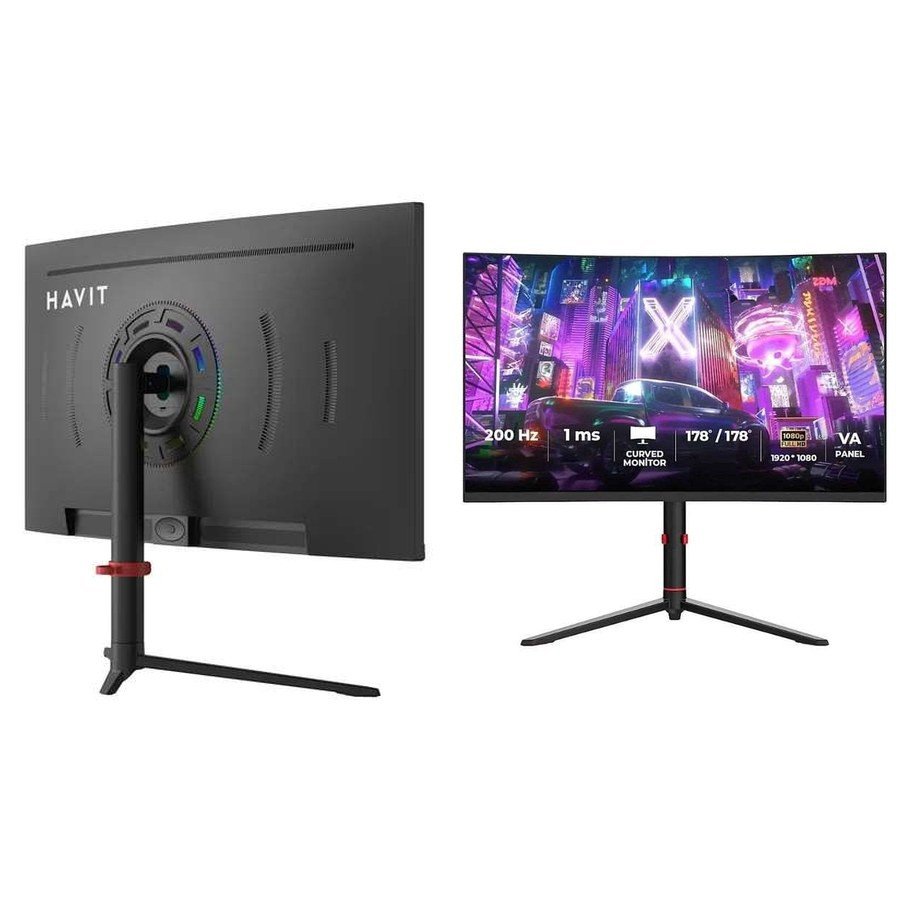
You connected a HAVIT GSC107-US monitor to a gaming PC but Windows only offers 60Hz or 120Hz, not the supplier-advertised 180Hz. That does not automatically mean the monitor is defective. The available rate depends on the graphics-card output, cable, HDMI/DisplayPort connection, selected resolution and the monitor’s accepted timing modes. The November 2026 HAVIT catalogue describes GSC107-US as a curved 27-inch VA display with 2560 × 1440 pixel resolution and a typical 180Hz maximum, but it does not show a full connector-by-connector timing table. This is a responsible troubleshooting guide, not a promise that every PC can run 1440p at 180Hz.
First confirm the actual screen mode
The supplier copy uses an inconsistent phrase—“Full HD 2560 × 1440”—while also repeating 2560 × 1440 as the resolution. That pixel count is normally called QHD or WQHD, not Full HD (1920 × 1080). Before troubleshooting performance, inspect the monitor’s actual model label, on-screen display and the resolutions recognized by the computer. If the physical unit reports a different native mode, rely on manufacturer-confirmed documentation for that exact regional unit rather than forcing an unsupported resolution.
Step 1: connect directly when possible
GSC107-US is listed with two DisplayPort inputs, two HDMI inputs, audio out and DC power. Check that the PC’s graphics card, not just its motherboard, is providing the intended video output. For troubleshooting, connect the graphics card directly to the monitor with a suitable known-good cable. Intermediate docks, converters and long adapters can impose refresh or resolution restrictions. The supplier sheet doesn’t identify HDMI/DisplayPort protocol versions, so it would be misleading to promise all ports offer the same 180Hz capability.
Step 2: check Windows Advanced Display settings
In a current Windows installation, open the display settings and select the HAVIT monitor rather than the laptop’s built-in panel. Look for the advanced display page showing active resolution and offered refresh rates. Choose a rate that appears as supported; do not force a custom timing that could cause signal loss or unstable behavior. If 180Hz is missing, first confirm the display is connected to the expected GPU output, then check the driver and cable. Some monitors require a particular on-screen performance mode to expose the top rate, but the exact HAVIT menu function isn’t established in the supplier sheet.
Step 3: check your GPU and cable before buying replacements
A graphics card’s maximum refresh rate depends on resolution, pixel format, colour depth and connection standard. A laptop may route its HDMI socket through a different GPU or protocol than USB-C/DisplayPort. Read the laptop or graphics card specifications for a 2560 × 1440 at 180Hz output mode. A cable marketed as 4K isn’t necessarily tested for every high-refresh combination. Where both devices support DisplayPort, test a verified suitable DP cable as one diagnostic option; do not represent that as a guarantee that HDMI never works at 180Hz.
Step 4: know the difference between refresh rate and game frame rate
A monitor set to 180Hz can update its display 180 times per second under the appropriate signal mode. The game may still render 60, 90 or 120 frames per second depending on the CPU, GPU, settings and scene. Turning the monitor to a higher refresh rate does not increase the computer’s graphics performance. For a fair check, use the game’s reliable performance readout and test a known system desktop mode before attributing lag to the display. Higher 1440p resolution demands more rendering work than 1080p, which may affect frame rates.
Step 5: don’t confuse response time with refresh
The HAVIT source lists 5ms grey-to-grey, 2ms with overdrive and 1ms MPRT figures. These are not the same metric as 180Hz, and one number does not verify the others. Aggressive overdrive settings can introduce visual artefacts. If movement looks smeared or develops bright inverse trails, adjust only the monitor’s actual documented overdrive settings while observing the result; do not assume the most extreme mode is always best.
Step 6: test without unsafe firmware or timing utilities
- Confirm the power, physical connections and the screen’s own menu work.
- Try the manufacturer’s officially supported graphics driver and operating-system updates.
- Check the accepted resolution/refresh options and choose a supported mode.
- If a new cable or adapter is suspected, isolate it by testing a short known-good direct connection.
- Record the exact HDMI/DP port, GPU and active timing if asking for support.
- Avoid third-party firmware and forced overclock timing where you cannot verify safety or rollback.
Frequently asked questions
Does 180Hz work on every HDMI port?
The distributor’s specification does not show a supported-timing table for each socket. Confirm port-level capabilities before buying a cable or adapter.
Is 2560 × 1440 called Full HD?
No. It is commonly QHD/WQHD; the supplier’s “Full HD” wording conflicts with its numeric pixel count and should be checked against the physical unit.
Will PlayStation or Xbox run at 180Hz?
Console-supported output rates differ from PC modes. Don’t assume a monitor’s PC maximum is available on a particular console.
Find the HAVIT GSC107-US in Nairobi
See the GSC107-US live product listing and our full model buying guide. Explore the HAVIT Kenya resource hub. Infinite Tech is at Rehema House, Standard Street, First Floor Shop 2, Nairobi CBD; call 0720 450 148 with your GPU, cable and source-device models for precise compatibility advice.
Source: HAVIT November 2026 supplier catalogue, page 9; GSC107-US product #97174. Troubleshooting guidance is generic to video timing and is not a verified walk-through of every HAVIT firmware menu.
