
ThinkPad T14s for a Working Day: Coding, Documents and Meetings

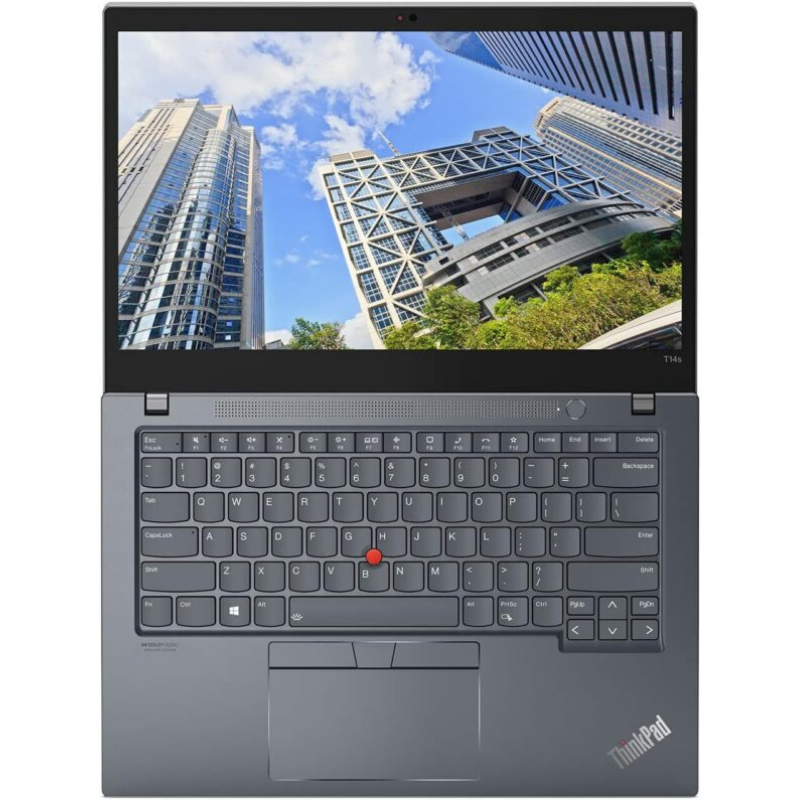
Could a ThinkPad T14s fit the way you work? Walk through coding, documents, meetings and the journey home before deciding. This specification-based working-day guide gives you a practical evaluation plan for the listed 32GB touchscreen offer. It does not report a completed hands-on test or measured battery life.
Catalogue and prices checked: 21 October 2026. Listing prices can change and do not reserve stock. This guide uses catalogue and manufacturer information; individual unit condition and measured performance require inspection. Read our laptop review methodology for the evidence behind our recommendations.
Know which T14s offer you are evaluating
The ThinkPad T14s Core i7 10th Gen, 32GB RAM, 512GB SSD touchscreen was listed at KSh 53,500 during this check. Obtain the full CPU suffix, screen resolution, machine identity, unit condition and included charger before the demonstration. Touchscreen does not mean this conventional T14s is an x360 convertible.
The T14s Gen 1 Intel manufacturer reference lists soldered memory with no slots, along with USB-A, USB-C/Thunderbolt and HDMI connections. Confirm the exact machine and working ports. Buy the installed memory capacity you need and price any required display cable or adapter separately.
Morning: open your normal work environment
Start with the tools you expect to keep open: editor, browser, documentation, a local database or other relevant applications. Use an anonymised sample project. Observe opening, searching and switching between tools. If you use containers or virtual machines, verify the operating system, virtualisation configuration and application support before installing them.
Follow Docker’s current Windows installation requirements when Docker Desktop is part of your setup. Installed RAM alone does not establish full compatibility. Our 16GB vs 32GB guide explains how to think about memory pressure without claiming that every developer needs the same capacity.
Mid-morning: read and edit the documents you actually use
Open a worksheet, proposal or report at your preferred scaling. Check text sharpness, visible workspace, glare and any screen marks. Type a page, try the function keys and evaluate the touchpad or TrackPoint. If you enter many numbers, decide whether a separate full-size keyboard is preferable for desk work.
The listing confirms touch input but does not settle screen resolution or the state of the offered panel. Ask for those details. Compare 14-inch vs 15.6-inch working formats if you spend more time in large spreadsheets than travelling.
Afternoon: join a call and present a file
Try your chosen call application with a sample presentation. Check camera framing, microphone capture, speaker or headset output and screen sharing. Connect the display you intend to use and confirm whether you need duplicate or extended screens. A working connector matters more than a photograph of a connector.
Use the client-meeting rehearsal checklist for a fuller sequence. If you regularly move between a home desk and meeting rooms, list all peripherals together. A keyboard, mouse, headset and external display can create different connection needs from the laptop alone.
Away from the socket: evaluate the actual battery
Request a recent report and use the battery-report guide to interpret the fields. Then agree an unplugged demonstration with the actual applications and screen settings you expect to use. Record starting charge, duration and ending charge. A short observation cannot establish a guaranteed full-day runtime.
Carry the laptop with its charger and any adapters rather than judging the machine alone. Inspect the lid, corners, hinges and charging behaviour. The condition-grading guide helps you agree which cosmetic marks and support terms are acceptable.
A demonstration sheet you can reuse
| Part of the day | Record your observation |
|---|---|
| Development | Project used, applications open, responsiveness and errors |
| Documents | Readability, scaling, typing comfort and screen condition |
| Calls | Application, camera, microphone, headset and screen sharing |
| Connections | Display, cables, peripherals and working ports tested |
| Battery | Report date, settings, test duration and charge change |
Leave the result blank until someone performs the demonstration. This keeps a proposed evaluation separate from measured evidence. If another machine is on your shortlist, use the same sheet for a fair practical comparison. Our T14s vs XPS 13 9310 guide compares the actual 32GB offers, and the upgrade-or-replace guide helps identify the limitation you want to solve.
Decide whether the complete setup fits
Check the laptop, charger, adapters, software and support together. For independent client projects, the freelancer buying guide helps connect the choice to your deliverables. A T14s that meets your practical checks can be a satisfying professional purchase; the evaluation should show why it suits your working day.
Frequently asked questions
Is this a hands-on T14s review?
No. It is a specification-based guide and proposed demonstration plan. No measured battery, speed or thermal results are claimed.
Which listed T14s is used in the guide?
The Core i7 10th Gen touchscreen offer with 32GB RAM and a 512GB SSD, priced at KSh 53,500 in the dated check.
Is the full processor model confirmed?
The selected listing states Core i7 10th Gen. Obtain the full suffix on the actual unit before evaluating performance.
Can I upgrade its RAM later?
The T14s Gen 1 Intel family has soldered memory with no slots. Confirm the machine identity and choose the required installed capacity.
Is this a convertible x360 laptop?
No. Touch input on the selected T14s does not turn it into an x360 convertible.
Does the listing establish screen resolution?
Not in the selected title and verified shortlist facts. Confirm the actual panel and examine readability at your preferred scaling.
Will 32GB run every Docker project?
No. Check Docker and project requirements, operating-system support, virtualisation and available resources, then try a representative environment.
How should I test calls?
Use the intended application with sample files and test camera, microphone, headset, screen sharing and any external display.
Can I expect a guaranteed full day on battery?
This guide provides no such measurement. Review a recent battery report and observe the actual unit under an agreed workload.
What should I ask for before ordering?
Request the exact CPU and panel, installed RAM and SSD, unit condition, charger, complete price and written support terms.
Choose a laptop you can feel confident using
Explore Infinite Pro: Serious work. Smart investment. and Developer Pro. Contact Infinite Tech at Rehema House, Nairobi, or call 0720 450 148 with your applications, budget and preferred setup. Request the actual unit details and complete quotation, and review warranty information and delivery information before ordering.
2 thoughts on “ThinkPad T14s for a Working Day: Coding, Documents and Meetings”
Comments are closed.