
Hisense Projector Image Out of Focus in Kenya: Focus and Keystone Guide

A Hisense projector image can look soft, uneven or trapezoid-shaped when the projector is not at the correct distance, the lens is dirty, the screen is not flat, the unit is tilted or the focus and geometry controls need adjustment. Start with physical alignment before applying digital correction. Focus, lens shift, auto-focus and keystone features differ across projector models; check the exact manual rather than assuming every menu offers the same tools.
1. Make sure the lens is clean
Switch the projector off and allow it to cool as directed in its manual. Use a clean, soft lens cloth and gentle dry cleaning. Do not spray cleaner directly onto the lens, use household glass cleaner, scrape dust with a fingernail or press hard against the optical surface. If the manual specifies a particular cleaning method, follow it. For stubborn marks or internal dust, arrange authorised service rather than dismantling the optical assembly.
See our Hisense projector lens-care guide for the safe external cleaning sequence.
2. Square the projector to the screen
Place the projector on a stable surface or mount it securely. Aim the lens toward the centre of the screen so the projector is not sharply angled from side to side or up and down. Check that the screen or wall is flat. A sloping projector position can create a trapezoid shape; keystone correction may make the shape look rectangular, but heavy digital correction can reduce usable image area or detail.
3. Check throw distance and screen size
Projectors have a supported projection range. Moving the unit closer or farther changes image size, and the correct distance depends on the model’s optics and the chosen screen diagonal. Use the manufacturer’s throw-distance chart or calculator for your exact model. Do not assume that two Hisense projectors share the same throw ratio. Our projector placement and throw-distance guide explains the room-planning questions to check before fixing a permanent mount.
4. Adjust focus before keystone
Display a clear menu or text screen, then adjust focus slowly until text near the centre is sharp. Check the corners as well. If the centre is sharp but one edge remains soft, the projector may not be square to the screen, the screen may be uneven or the installation may be outside the supported geometry. Do not use digital zoom or keystone as a substitute for correct placement. If your model has auto-focus, run it on a stable surface with an unobstructed view of the screen and repeat only as the manual permits.
5. Reduce room light and avoid unstable surfaces
Ambient light can make a projected image look washed out even when focus is correct. Close curtains, reduce direct light on the screen and use a suitable screen surface. A table that vibrates, a loose shelf or a projector placed near a speaker can also make the image appear unstable. Our room-brightness and screen setup guide covers those viewing conditions.
6. When to stop adjusting
If focus cannot be achieved across the image, the picture has persistent colour patches, the lens is damaged, the unit overheats or the optical system makes unusual noises, stop and contact a qualified service provider. Do not open the projector, touch the laser or lamp assembly, or attempt internal alignment. Keep ventilation openings clear and allow the unit to cool before moving it.
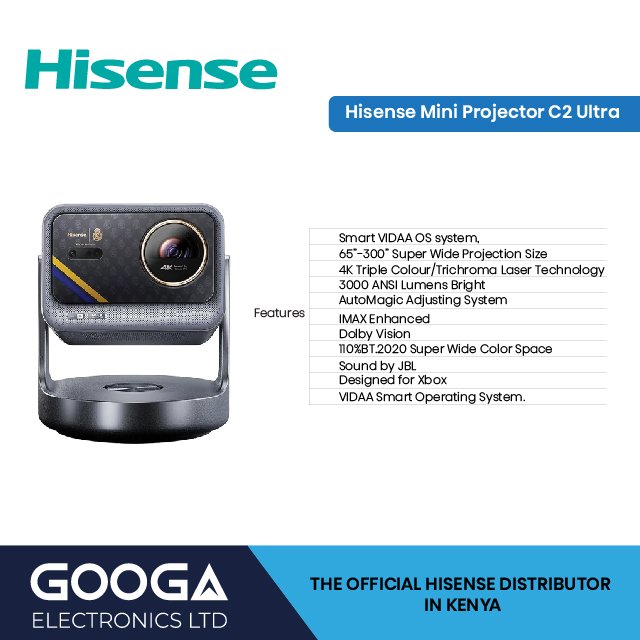
For a current product reference, see the Hisense C2 Ultra Real Madrid 4K TriChroma projector. Verify exact model features, availability and warranty before purchase.
Frequently asked questions
Why is the centre sharp but the corners blurry?
Alignment, screen flatness, distance or optical limits may be involved. Square the projector to the screen and check the supported throw range before applying more digital correction.
Should I use keystone correction first?
No. First position the projector square to the screen. Use the model’s keystone control only for small residual geometry corrections where the manual recommends it.
Can I clean the projector lens with glass cleaner?
Do not assume household glass cleaner is safe. Use the cleaning method and materials specified in the projector manual, usually a suitable soft lens cloth.
Does moving the projector change image focus?
Moving it changes image size and may require refocusing. The usable distance range depends on the exact projector model.
Why does keystone correction reduce picture quality?
Digital geometry correction can resample the image and reduce the active image area. Physical alignment is preferable whenever the room allows it.
Where can I confirm the correct throw distance?
Use the official model manual or manufacturer throw-distance information for your exact model and screen size.
Related Hisense guides
Visit the Hisense Knowledge Centre for projector placement, screen selection, room brightness and home-cinema setup.
