

How to Inspect an Ex-UK Desktop Before Buying in Kenya

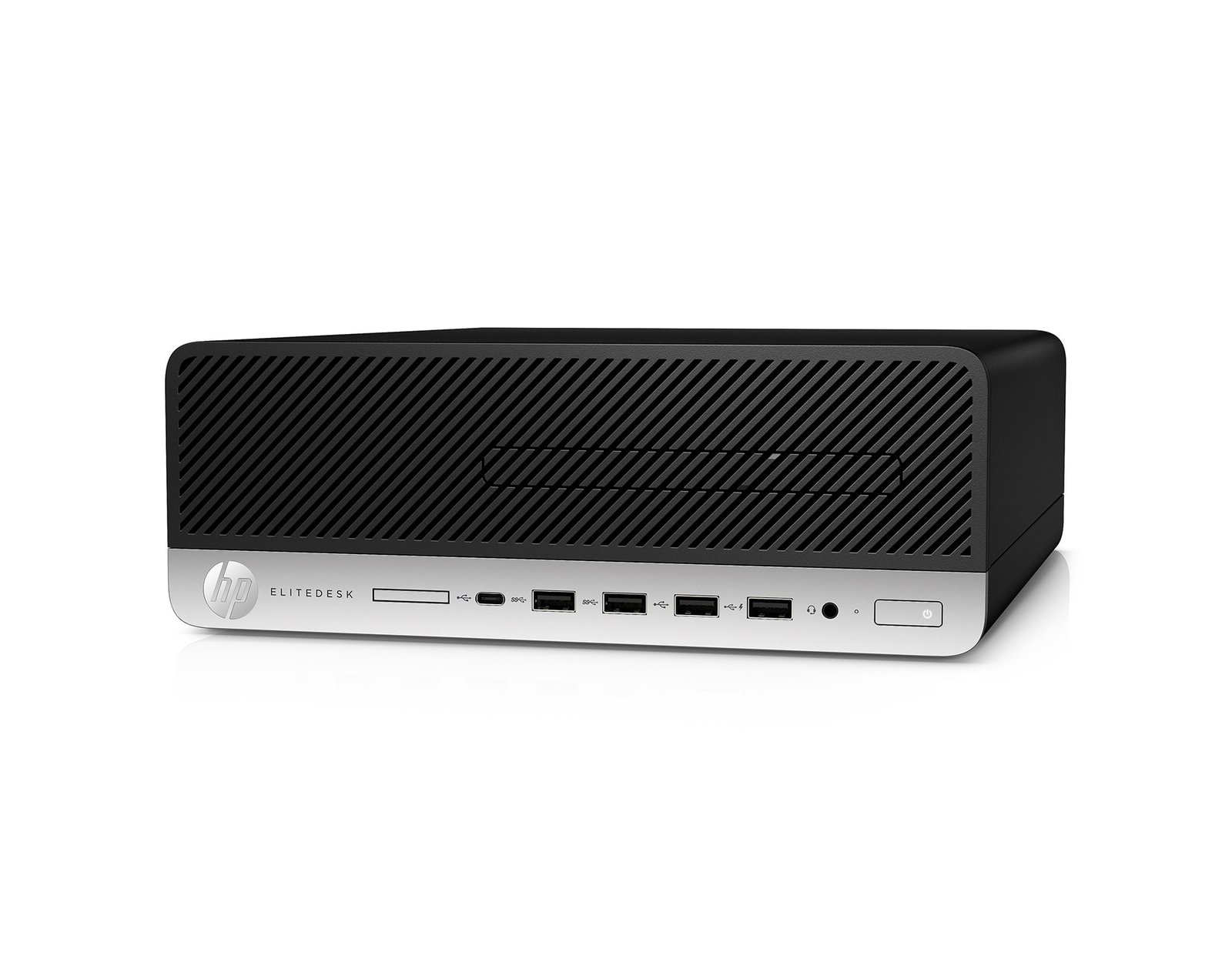
ex UK desktop buying guide Kenya — An ex-UK desktop can be a sensible purchase for a Kenyan home, school or small business—but only when it is tested honestly. ‘Ex-UK’, ‘refurbished’ and ‘clean’ do not establish the machine’s SSD health, operating-system legitimacy, warranty or whether the actual unit matches an advertisement. Use this structured inspection checklist before paying for an HP EliteDesk, HP ProDesk or Dell OptiPlex.
Information and catalogue asking prices reviewed 28 October 2026. All system specifications beyond the supplied configuration require unit-specific confirmation.
1. Match the physical desktop with the listing
Read the manufacturer’s service tag or serial label and compare the full model number against the invoice. Ask for front, rear and side photographs of the machine that will actually be supplied, not only catalogue photos. Look for cracked case clips, bent USB ports, corrosion or missing screws.
Confirm Mini, Small Form Factor or Tower chassis because the form changes cooling, storage bays, graphics expansion and shipping size. A description saying only ‘EliteDesk 800 G4’ is not enough.
2. Verify processor, RAM and storage
Boot the computer and check the exact CPU model in system information or BIOS. Inspect installed memory size and, if possible, module configuration and free slots. Confirm that a stated SSD is really installed, its actual capacity and interface. For supplier listings saying only 500GB, determine whether it is HDD or SSD.
The nine Infinite Tech desktop offers describe 8GB RAM, and seven specifically identify an SSD. The two 500GB entries require additional drive-type evidence.
3. Test storage, cooling and ports
Request a basic diagnostic session: SMART drive-health information where available, memory test, several restarts, fan behavior under normal load, front/rear USB, wired networking, audio and each display connection. A system that starts once is not fully inspected. Listen for unusual rattling and check that the cooling fan operates normally.
If your shop uses a barcode scanner, printer, two displays or a network printer, test those exact types of peripherals before deployment where possible.
4. Confirm firmware and Windows security
An old corporate desktop may retain BIOS passwords, management settings or organization-specific restrictions. Ask the seller to show that the BIOS is accessible and the machine has been legitimately decommissioned. Verify the activated Windows edition and any licensed applications; don’t assume software comes free with a second-hand PC.
For Windows 11, test the actual processor, TPM 2.0, UEFI and Secure Boot readiness according to Microsoft’s requirements. Avoid unsupported upgrade shortcuts marketed as full compatibility.
5. Understand warranty and what is in the box
Ask the retailer to put the warranty period, covered components and return procedure in writing. Check power leads, adapters, monitor and keyboard or mouse inclusion. A 90W mini-PC adapter is not interchangeable with every similar-looking model. If the machine is advertised as having 4GB graphics, insist on an exact GPU name and performance suitability.
Obtain clear delivery charges and whether installation, data migration or additional SSDs are separately priced. Check the invoice for full device identity and configuration.
6. Keep business data and backups in mind
For second-hand corporate equipment, a reputable seller should have wiped prior owners’ data and reinstalled the system appropriately. Do not rely on a stranger’s existing accounts or leftover software. Once delivered, create your own staff accounts, set up security updates and take an initial backup.
At Infinite Tech in Nairobi CBD, ask for a unit-specific photo, component details and warranty statement through WhatsApp 0720450148 before committing to a purchase.
Compare current Infinite Tech computer prices
These are catalogue asking prices checked on 28 October 2026. Monitor, peripherals, installed OS and exact chassis are not confirmed by the supplier lines.
| Exact desktop offer | Listed asking price |
|---|---|
| HP EliteDesk 705 G4 Ryzen 5 · 8GB/500GB | KSh 24,500 |
| HP ProDesk 400 G5 i5 8th Gen · 8GB/256GB SSD | KSh 32,500 |
| HP EliteDesk 800 G4 i5 8th Gen · 8GB/256GB SSD | KSh 32,500 |
| HP EliteDesk 800 G5 i5 9th Gen · 8GB/512GB SSD | KSh 42,500 |
| Dell OptiPlex 7070 i5 9th Gen · 8GB/512GB SSD | KSh 42,500 |
| Dell OptiPlex 7060 i5 8th Gen · 8GB/256GB SSD | KSh 32,500 |
Frequently asked questions
Are all ex-UK desktops refurbished to the same standard?
No. Seller testing, parts, physical condition and warranty policies differ widely.
What is the first thing to check when buying used?
Confirm the exact serial/model, CPU, RAM, drive type and the physical machine being supplied.
Should the BIOS be accessible?
Yes, legitimate ownership and unrestricted authorized access matter for maintenance; ask the seller to demonstrate it.
What should I ask about an SSD?
Drive type, capacity, health information, secure wipe status and whether it is included in the written quotation.
Does Windows 11 installed mean officially compatible?
No. Check supported hardware eligibility, firmware features and licence activation separately.
Can a used desktop come with a monitor?
Sometimes in a bundle, but don’t assume inclusion when the supplier price lists only the desktop system unit.
Related Infinite Tech buying guides
best refurbished desktop computers kenya 2026 · ssd vs hdd refurbished desktop kenya · mini pc vs sff vs tower desktop kenya
Browse the Infinite Tech desktop catalogue, or contact the Nairobi team at 0720450148. Visit Rehema House, Standard Street, 1st Floor Shop 2, behind Sarova Stanley Hotel; confirm exact CPU, chassis, condition, accessories and stock first.
