
Annotating PDFs on Galaxy S24 Ultra: S Pen Workflow for Work and Study

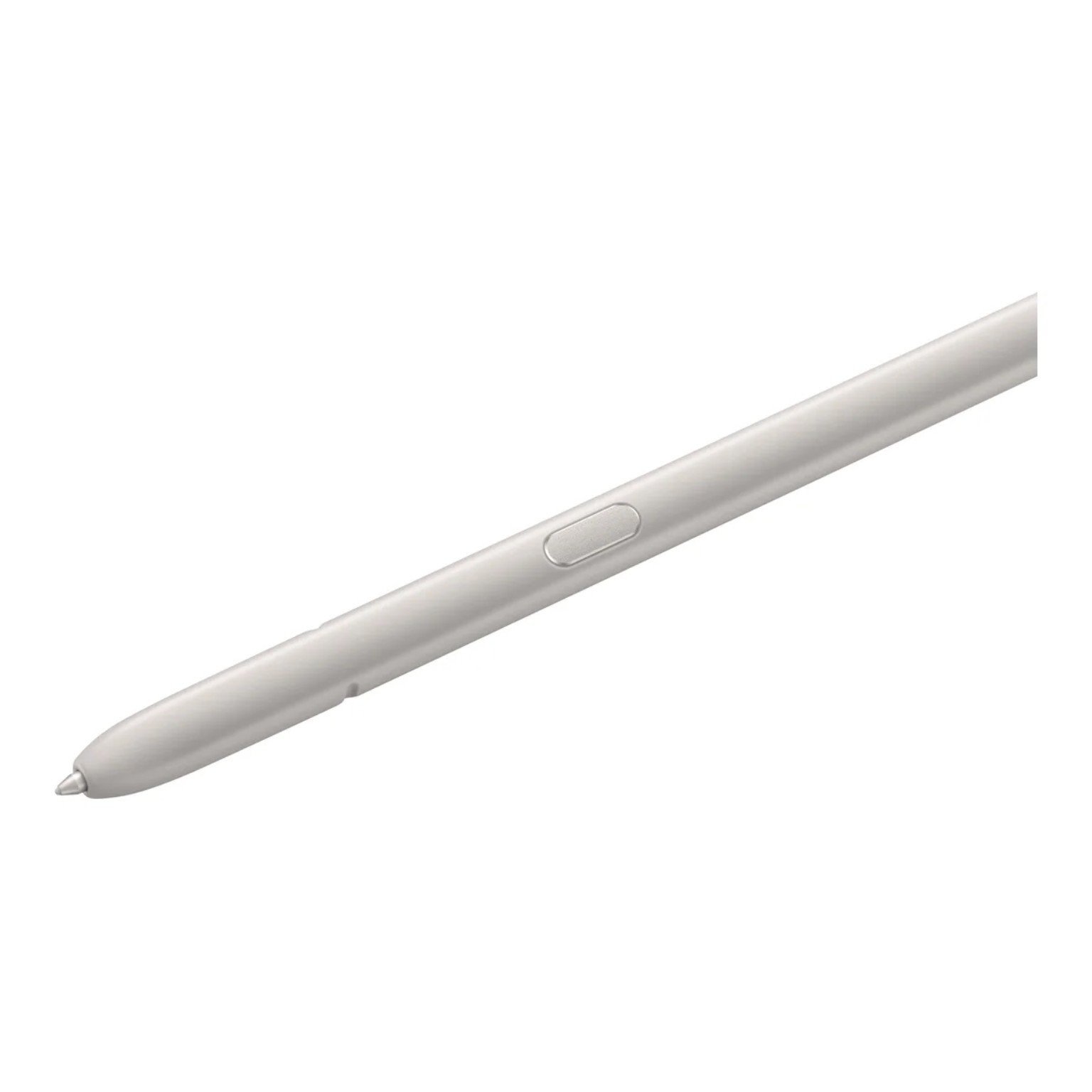
A Galaxy S24 Ultra with a functioning S Pen can be a useful portable document-review tool. For students and professionals, the most valuable capability may be placing an accurate mark on a contract, lecture handout or floor plan.
Choose a suitable document app
Open a PDF in an app that explicitly supports annotation. Verify whether notes are saved as part of the PDF or in the app’s own database; those are not always the same thing.
Use a consistent markup system
Pick simple conventions: yellow for important numbers, a circle around disputed details and a margin note for follow-up questions. Too many colours make an annotated page harder to review.
Export and verify
After annotating, save a copy under a new filename and reopen it. Check that the pen marks appear where expected before sending the file to a client or lecturer.
Test the pen before important work
A compatible nib should create predictable marks without frequent dropouts. Try a small diagram and fine text before relying on a newly purchased replacement for a meeting.
Know the feature boundaries
Ordinary PDF markup does not establish Bluetooth Air Actions support. If you want remote gestures, confirm those independently on the exact accessory.
Frequently asked question
Will any S24 Ultra-compatible pen annotate PDFs?
Only if its writing input functions on your handset and the app supports pen markup; test the full workflow first.
Find the model-specific replacement
Check Infinite Tech’s Galaxy S24 Ultra replacement-style S Pen listing at KSh 4,995. Images are shared references across Ultra models. Verify the exact physical fit, colour, manufacturer status and available functions before ordering. Infinite Tech is at Rehema House, Standard Street, Nairobi CBD, 1st Floor Shop 2. Phone: 0720 450 148.
For handset capabilities, read Samsung’s official Galaxy S24 Ultra S Pen feature guide. Features of the original Samsung pen are not automatically specifications of a replacement.
