
MacBook Air M5 Printer and Scanner Setup: AirPrint, Drivers and Office Networks

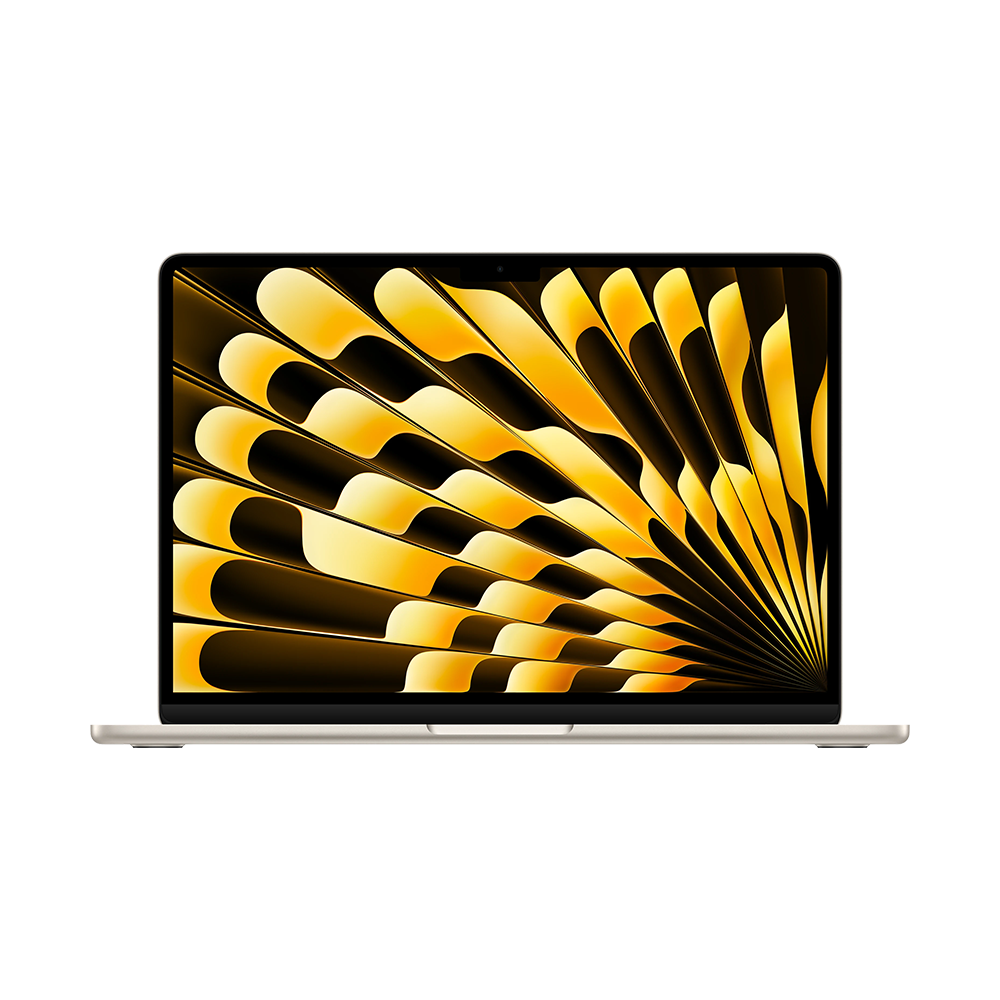
Check your office printer and scanner before buying a new MacBook Air or replacing working equipment.
Identify the exact devices
Read the printer and scanner model numbers and check the manufacturer’s current macOS support. AirPrint can simplify supported printing, but scanning, duplex options and finishing features may have separate requirements.
Test the network or cable
On an approved network, use macOS printer settings to discover the device and add it through a supported method. For USB devices, use a suitable data-capable cable or adapter. Managed offices may require IT configuration.
Verify your real work
Print a multi-page document, check paper size and duplex behavior, and scan a sample to the intended file format. Confirm that any required label-printing or accounting application supports the workflow. Keep a known working alternative during the transition.
Frequently asked question
Does AirPrint guarantee all scanner features work?
No. Printing and scanning compatibility should be checked separately.
Compare MacBook Air 13-inch M5, MacBook Air 15-inch M5. Consult manufacturer guidance and contact Infinite Tech Nairobi for current stock and warranty.
