
ThinkPad RAM and SSD Upgrades: A Guide by Exact Model

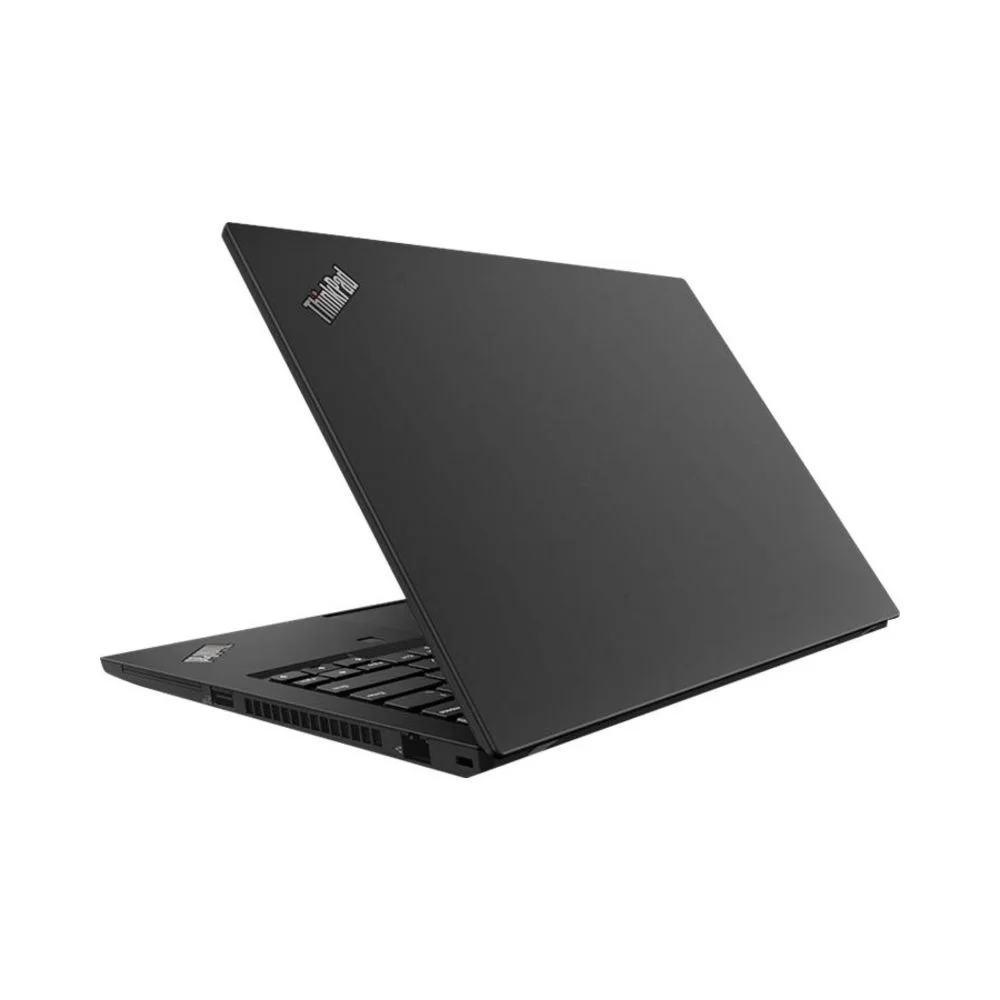
A ThinkPad RAM or SSD upgrade should begin with the exact model and machine type. Closely related names can hide very different memory layouts, while an M.2 connector does not by itself establish drive size or interface compatibility. Before spending money in Kenya, identify what is installed, what the platform supports and whether upgrading is better value than choosing another laptop.
Catalogue and references checked: 20 October 2026. Prices below are Infinite Tech catalogue asking prices for the stated configuration. Confirm the actual unit, availability, accessories and written warranty before payment.
The programming laptop guide helps determine whether memory or storage is the constraint. The T480, T480s and T490s comparison explains why similar names do not imply identical upgrade paths.
Use the ThinkPad buying guide when comparing an upgrade with a replacement laptop. The X280, X390 and X13 guide adds context for smaller models with generation-specific memory layouts.
ThinkPad RAM and SSD upgrades: verify the model
| Choice | What to compare | Buying implication |
|---|---|---|
| T480 | Socketed memory configurations in Lenovo documentation | Verify the occupied sockets and supported modules |
| T480s | Soldered memory plus one SO-DIMM socket | The soldered amount affects the final possible configuration |
| T490s / X13 Gen 1 Intel | Documented soldered memory designs | Choose enough RAM before buying; do not quote a socket upgrade |
Identify the laptop before identifying the part
Find the full machine type and serial information on the device and in its firmware or system information. Use Lenovo’s platform reference and the matching maintenance manual for that model. A guide for a T490 is not automatically a guide for a T490s, and an X13 reference must match the generation and processor platform.
Write down installed RAM, installed drive model and available storage space. This separates a genuine capacity problem from a software issue or a nearly full disk. If the computer is mainly slow because of background programs, a storage purchase may not address the cause. Establish the problem and the required outcome before asking a technician for parts.
Read the memory layout, not a generic maximum claim
The T480s documentation describes soldered memory and a single SO-DIMM socket, while the T490s has no RAM upgrade slots. An advert claiming that every ThinkPad can take more RAM is therefore unreliable. Even where a socket exists, the installed configuration and Lenovo’s validated module options matter.
Ask the technician to identify the existing soldered capacity, removable modules and proposed final capacity in writing. Do not confuse a manufacturer’s validated configurations with a guarantee about every third-party module. If there is no supported RAM upgrade, consider keeping the current machine for lighter tasks or comparing a configuration with enough installed memory rather than paying for speculative work.
Check SSD interface, physical size and the data plan
An SSD purchase needs more than the word M.2. Confirm the drive’s supported interface, physical length, connector arrangement and any required bracket or thermal part for the exact machine. A spare slot intended for another function should not be treated as an approved storage socket without documentation.
Before replacement, make a separate backup and decide whether the new drive will be cloned or receive a clean installation. Keep account credentials, encryption recovery information and licensed software access available. Ask how the old drive will be returned or securely handled. The final check should include booting, expected capacity, storage health and your important applications, not just proof that a new drive fits.
Compare the full upgrade cost with a replacement configuration
Include the part, labour, data work and any new operating-system or software requirement. A useful RAM upgrade on an otherwise healthy laptop can extend its working life, but it will not change the CPU generation, screen quality or battery wear. Adding a larger SSD also does not create dedicated graphics or solve an application-compatibility problem.
Use the linked catalogue examples to compare the ready-to-use alternative. The T490s example already lists 16GB memory, while the T480s example should be examined for its exact expansion arrangement. Have a qualified technician follow Lenovo’s handling instructions, including battery isolation where specified. Finish by checking that the system recognises the intended parts and that ordinary sleep, charging and startup still work.
Real Infinite Tech catalogue examples
These links lead to individual listings, not a promise that every model in the wider family is available. Compare the complete configuration rather than the processor badge alone.
| Exact listing | Listed price | Next check |
|---|---|---|
| Lenovo ThinkPad T480 Intel Core i5 8th Gen 8GB RAM 256GB SSD 14 Inches |TOUCH SCREEN | KSh 23,500 | Confirm unit condition, exact components and what is included |
| Lenovo ThinkPad T480s Core i5 8th Gen 8GB RAM 256GB SSD Non-Touch | KSh 25,000 | Confirm unit condition, exact components and what is included |
| Lenovo ThinkPad T490s Core i7 8th Gen 16GB RAM 256GB SSD Non-Touch | KSh 30,000 | Confirm unit condition, exact components and what is included |
| Lenovo ThinkPad X13 Gen 1 Core i5 10th Gen 16GB RAM 256GB SSD Non-Touch | KSh 34,495 | Confirm unit condition, exact components and what is included |
A practical buying decision
Upgrade when the documented design supports the required part and the complete cost makes sense. If memory is soldered and insufficient, choose another configuration. Keep the machine type, proposed part details and backup plan together before authorising the work.
Frequently asked questions
Can I upgrade RAM on a T490s?
Lenovo documents soldered RAM without memory slots. It is not a normal socketed RAM upgrade.
Does every M.2 SSD fit every ThinkPad?
No. Verify interface, length, supported socket and required mounting parts for the exact machine.
Will a larger SSD make the processor newer?
No. Storage capacity, processor capability and memory are separate characteristics.
Should I back up before an SSD replacement?
Yes. Keep a separate, verified copy of important data before any storage work begins.
Related Infinite Tech buying pages
More Lenovo buying guides
- Lenovo Laptop Prices in Kenya: ThinkPad, IdeaPad and Yoga Compared
- ThinkPad T480 vs T480s vs T490s: Which Should You Buy?
- ThinkPad X280 vs X390 vs X13: Portable Laptop Buying Guide
- Used ThinkPad Buying Checklist: Battery, USB-C Charging and BIOS Locks
Manufacturer references and research method
This is a research-based buying guide, not a hands-on test or a benchmark report. Manufacturer references describe supported options; the linked catalogue identifies the configuration being offered. Model-specific details should be matched to the full product code or service tag.
- Lenovo ThinkPad T480 specifications
- Lenovo ThinkPad T480s platform specifications
- Lenovo ThinkPad T490s specifications
- Lenovo X13 Gen 1 Intel specifications
Confirm your laptop with Infinite Tech
Contact Infinite Tech at Rehema House, Nairobi, on 0720450148. Ask for the full model code, a written specification and the applicable warranty. Read warranty information, delivery information and contact Infinite Tech before placing an order.
2 thoughts on “ThinkPad RAM and SSD Upgrades: A Guide by Exact Model”
Comments are closed.