
Sonos Roam for Android Users: App Setup and Bluetooth Playback

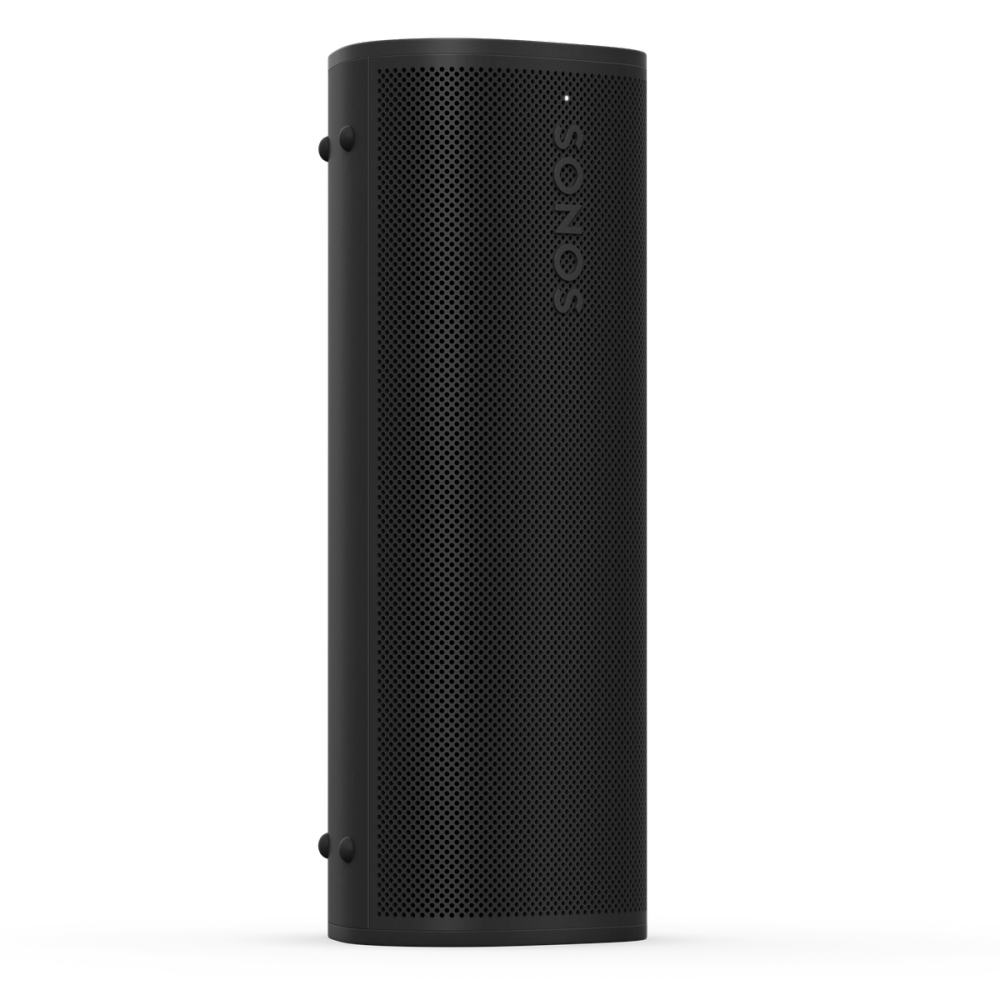
Choose between direct Bluetooth playback and compatible Sonos app features on an Android phone.
Check the speaker generation before setup
Roam 2 offers direct Bluetooth setup. Earlier Roam models may require the initial Sonos system setup before Bluetooth use. Consult the exact speaker’s instructions and the current Sonos Android app requirements. Do not assume all generations use the same buttons or pairing procedure.
Bluetooth checklist
- Charge the speaker and switch it on.
- Follow the model’s pairing instructions.
- Open the phone’s Bluetooth settings and select the speaker.
- Check the chosen audio output and volume.
- Play a sample of locally stored audio to distinguish connection issues from streaming-service problems.
Wi-Fi and Sonos app playback
For compatible system functions, connect the phone and speaker according to Sonos’s Wi-Fi setup process. Review Android app permissions requested for discovery and nearby devices. Guest networks can prevent devices from communicating with one another. Bluetooth audio working correctly does not necessarily mean Wi-Fi discovery has succeeded.
Which Roam should you consider?
See Sonos Roam 2 and Roam SL. Select a model based on setup preferences and microphone requirements; Roam SL does not contain the voice microphone found in other variants. Check any streaming-service or account requirements separately.
FAQs
Can I use locally stored music offline?
Yes over supported Bluetooth playback; internet streaming is a separate requirement.
Will an Android update change app support?
Check Sonos’s current operating-system requirements.
Should I reset the speaker if pairing fails?
First review the model-specific pairing and network checks.
Reference: Sonos support. Related: connection troubleshooting.
Infinite Tech, Rehema House, Standard Street, Nairobi CBD. Call 0720450148 to confirm stock and exact model. Research-based guidance, not independent testing.
