
Google Pixel 11 USB-C File Transfers to Windows: Photos and Documents

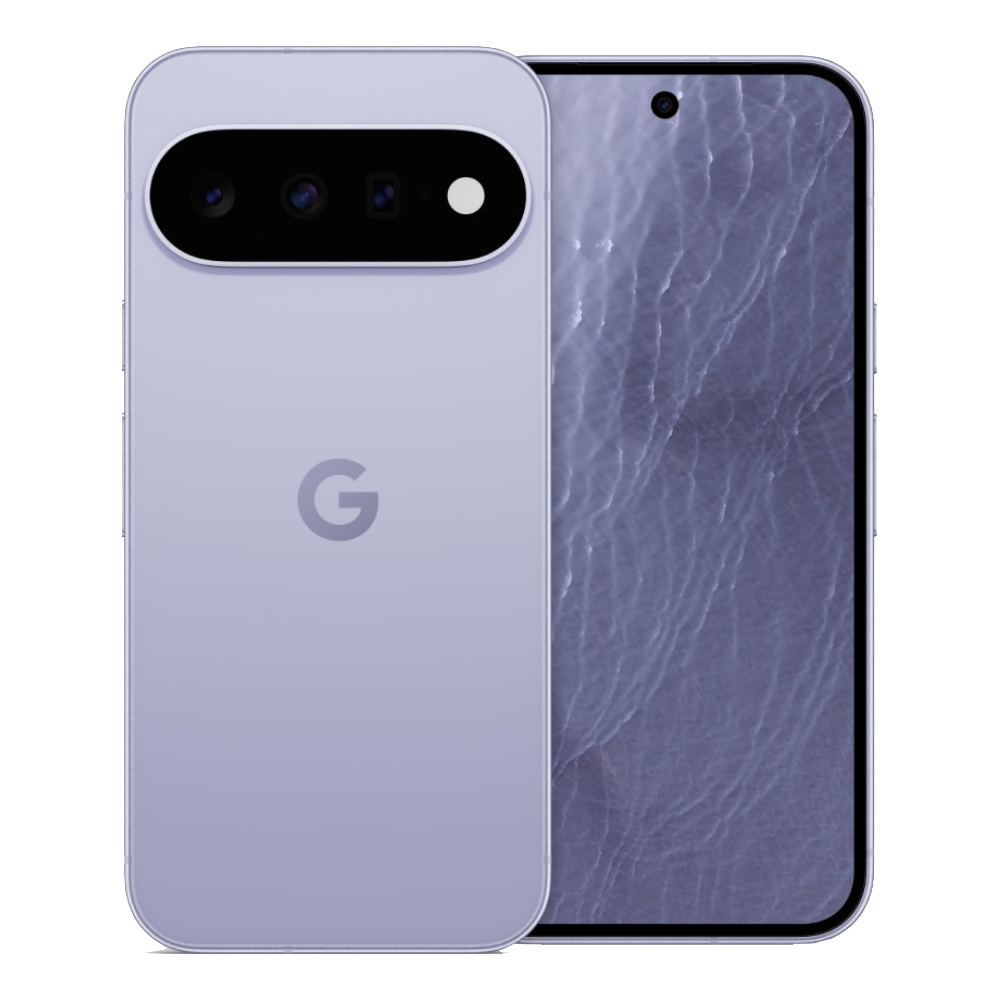
Transfer large photos and documents from a Pixel 11 to a Windows PC without relying on mobile data.
Select a data-capable cable
Not every USB-C cable carries data at the same speed. Unlock the phone, connect it directly to the computer and choose the appropriate USB file-transfer mode when prompted. Avoid unknown public computers.
Organize and verify the copy
Create dated folders on the PC and copy a sample photo first. Compare file size and open the copied file. Then copy larger folders in manageable groups. Do not use cut-and-paste for the only copy of valuable media.
Keep a second backup
For confidential files, encrypt the destination or use approved company storage. Safely disconnect the device after transfers finish. If a drive is not detected, test a known-good data cable and another port.
Frequently asked question
Why does my phone only charge?
The cable may be charge-only or the phone may be in charging mode. Check both before replacing the phone.
Compare Google Pixel 11, Pixel 11 Pro. See manufacturer support and contact Infinite Tech in Nairobi for current price, exact configuration and warranty.
