Samsung Galaxy A07s Setup: Smart Switch and WhatsApp

Updated 24 November 2026 by Infinite Tech.
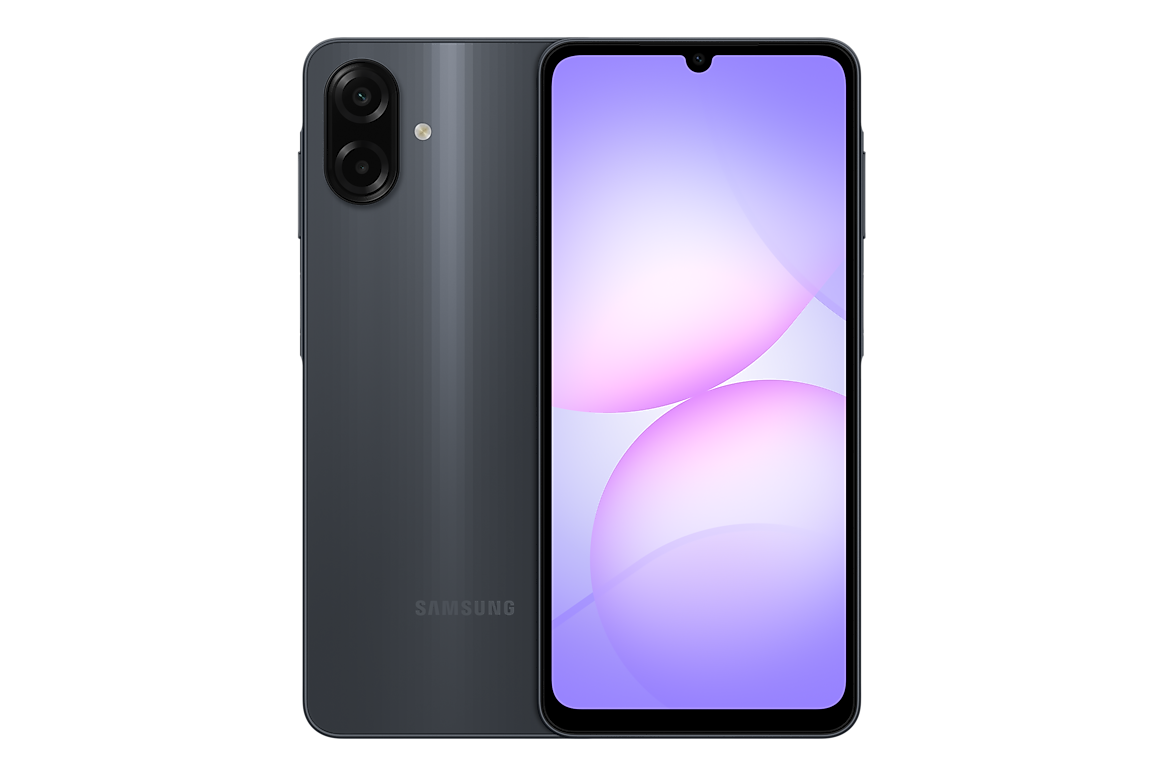
When moving to a Galaxy A07s, prepare your backups and free space before copying data. Samsung Smart Switch can help with supported contacts, photos and other files, while WhatsApp needs its own supported transfer or restore procedure. Keep the old phone intact until you have checked the result on the new one.
In this guide: Prepare both phones · Use Smart Switch for supported data · Moving WhatsApp from another Android phone · Moving from an iPhone · Check before clearing the old phone · Transfer questions · All A07s guides
Prepare both phones
- Back up important data and confirm you can open the backup where applicable.
- Check that you know the account details needed to sign in again.
- Compare the old phone’s used space with free space on the A07s.
- Update the transfer apps and have a compatible cable ready if needed.
- Keep both devices sufficiently charged and allow time for the process.
A full old phone can contain far more than you want on a new 64GB handset. Select essential files and apps first. The A07s 64GB storage guide helps you decide which large files to archive separately. Store large archives elsewhere if you do not need them on the phone, but verify that the separate copy works before removing any original.
Use Smart Switch for supported data
Open Smart Switch on the A07s as the receiving phone and follow the instructions for the old device type. Choose a supported cable or wireless method and review the categories offered. Transfer availability depends on the source device, software and data type; seeing an app icon does not establish that every account or item of app data has moved.
When the transfer finishes, let app installations complete. Then check a sample of old and recent contacts, photographs and documents. Reopen essential apps and confirm sign-in. Some services deliberately require fresh authentication on a new handset.
Moving WhatsApp from another Android phone
WhatsApp offers its own Chat Transfer process for supported Android-to-Android moves. Start with WhatsApp’s current instructions on the old phone before registering the new installation, use the same phone number and follow the prompts on both devices. Keep the phones nearby with the required connectivity and permissions.
A supported backup-and-restore route is another option. If using a Google Account backup, check the correct account, available cloud space and completed backup before restoring. Backup choices can change as WhatsApp rolls out features, so use the options actually offered in your app. Installing WhatsApp through Smart Switch alone is not confirmation that the chats and media have been restored.
Moving from an iPhone
Follow Samsung’s iPhone-to-Galaxy procedure and the current WhatsApp migration instructions. Samsung describes a cable requirement for transferring WhatsApp data, even where other files can move wirelessly. Do not assume an iPhone cloud backup can simply be opened as an Android backup.
The timing matters: starting WhatsApp on the new phone before the migration is ready can interfere with the intended transfer. Read the current process first. If you are changing phone numbers as well, follow WhatsApp’s supported number-change instructions before attempting the move.
Check before clearing the old phone
- Open important contacts, photos, documents and conversations on the A07s.
- Check older records as well as the most recent messages.
- Confirm that key apps work and that account recovery methods remain accessible.
- Create a fresh backup from the new phone after confirming the result.
- Only then prepare the old handset for sale, trade-in or another user.
Transfer questions
Can I transfer WhatsApp from an Android phone to the Galaxy A07s?
WhatsApp provides a supported Android-to-Android Chat Transfer process. Follow its current instructions on both phones and use the same phone number. A supported backup-and-restore route is another option; verify chats and media before clearing the old phone.
Does Smart Switch guarantee that every app’s data moves?
No. Supported data types vary, and individual apps can require their own migration or sign-in process.
Should I erase the old phone as soon as a transfer says complete?
First verify the data and essential apps on the A07s. A completion message is a useful step, not a substitute for checking the records you need.
Source: Samsung Smart Switch guidance. Guidance checked on 24 November 2026.
Source: WhatsApp Android Chat Transfer instructions. Guidance checked on 24 November 2026.
Source: WhatsApp backup guidance. Guidance checked on 24 November 2026.
Source: Samsung iPhone-to-Galaxy transfer guidance. Guidance checked on 24 November 2026.
View the Galaxy A07s 64GB offer at Infinite Tech. For availability or collection, call 0720450148. Our shop is at Rehema House, Standard Street, first floor Shop 2, Nairobi CBD.
More A07s help