

How to Move Data to a New Samsung Galaxy A Using Smart Switch

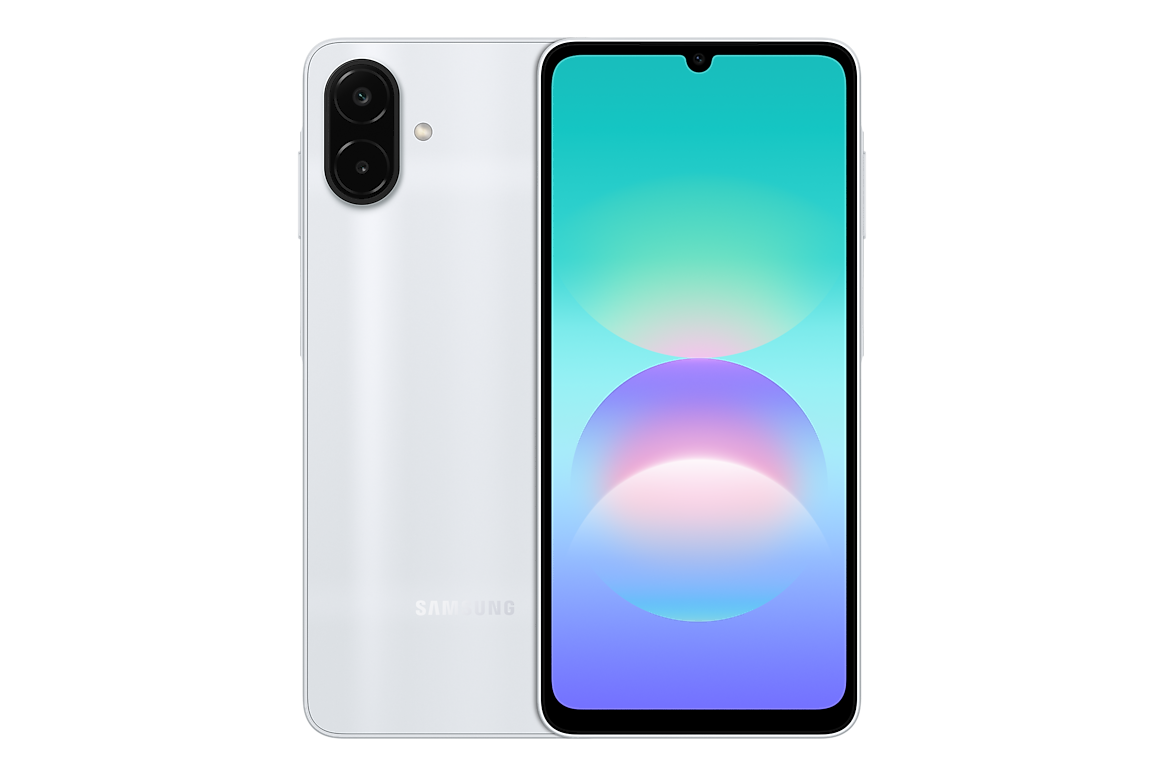
Infinite Tech Kenya practical guide · 31 October 2026. This article describes manufacturer information and buying decisions; no hands-on laboratory results or guaranteed prices are claimed.
Replacing a phone is easier when contacts, photographs and compatible files move safely to the new handset. Samsung Smart Switch is one supported migration option, but not every third-party app transfers sign-in sessions, banking credentials or protected chats automatically.
Verified Samsung information and regional caveats
Samsung’s official manufacturer documentation provides the technical or service reference. Exact memory, warranty, software and cellular functions can depend on the model and market. Check the complete retail SM- code, not only the Galaxy A model name.
Prepare both phones
Charge both devices, check available storage on the new Galaxy A and connect to a reliable Wi-Fi network if using wireless transfer. Back up important photographs and files independently. Update Smart Switch on supported devices. Do not erase the old phone before verifying the new one.
Choose a supported transfer method
Samsung Smart Switch may support wireless, cable or computer-based transfer depending on the source and destination phones. On the new device, follow its Smart Switch prompts, choose what to transfer and monitor completion. Transferring from an iPhone or another Android can involve different supported content categories.
Check what didn’t migrate
Banking and M-Pesa apps may require fresh authentication and identity verification; WhatsApp should be handled according to its current supported migration or backup process. Verify contacts, media, calendars and messages after transfer. App licences, protected content or some settings may not migrate.
Protect personal data
Use your own accounts and trusted networks, keep two-factor recovery codes safe and confirm data is complete before recycling or selling the old phone. A store helper should not request your banking PINs or OTPs. Ask Infinite Tech for current setup assistance options if needed.
Buyer action checklist
- Define your actual use case, budget and necessary applications.
- Check the exact model and regional hardware specifications against Samsung’s record.
- Compare physical RAM and storage, not RAM Plus marketing or generic images.
- Review the related Infinite Tech product or guide and the A-series catalogue for live prices and stock.
- Confirm supplied accessories, written warranty, return policy and delivery or collection terms.
Frequently asked questions
Does Smart Switch copy everything?
Not always. Protected app data and some sign-ins require separate steps.
Can it move data from an iPhone?
Samsung provides supported migration methods; exact content may differ.
Should I wipe the old phone immediately?
No. Confirm the new data and backups first.
Where to buy and obtain help
Use the manufacturer-data reference and shopping checklist. Visit Infinite Tech, Rehema House, Standard Street, First Floor Shop 2, Nairobi CBD. Telephone 0720450148. Call to confirm actual availability and any service before visiting. The WooCommerce checkout price is authoritative.
